Using Autoscaling#
Lens premium subscription feature. See details on Lens Pricing.
The Autoscaling entry in the cluster navigator opens a dashboard of everything that scales the cluster, and gives you a list and details for each KEDA and Karpenter kind.
View the dashboard#
- Connect to a cluster.
- In the cluster navigator, select Autoscaling > Dashboard.
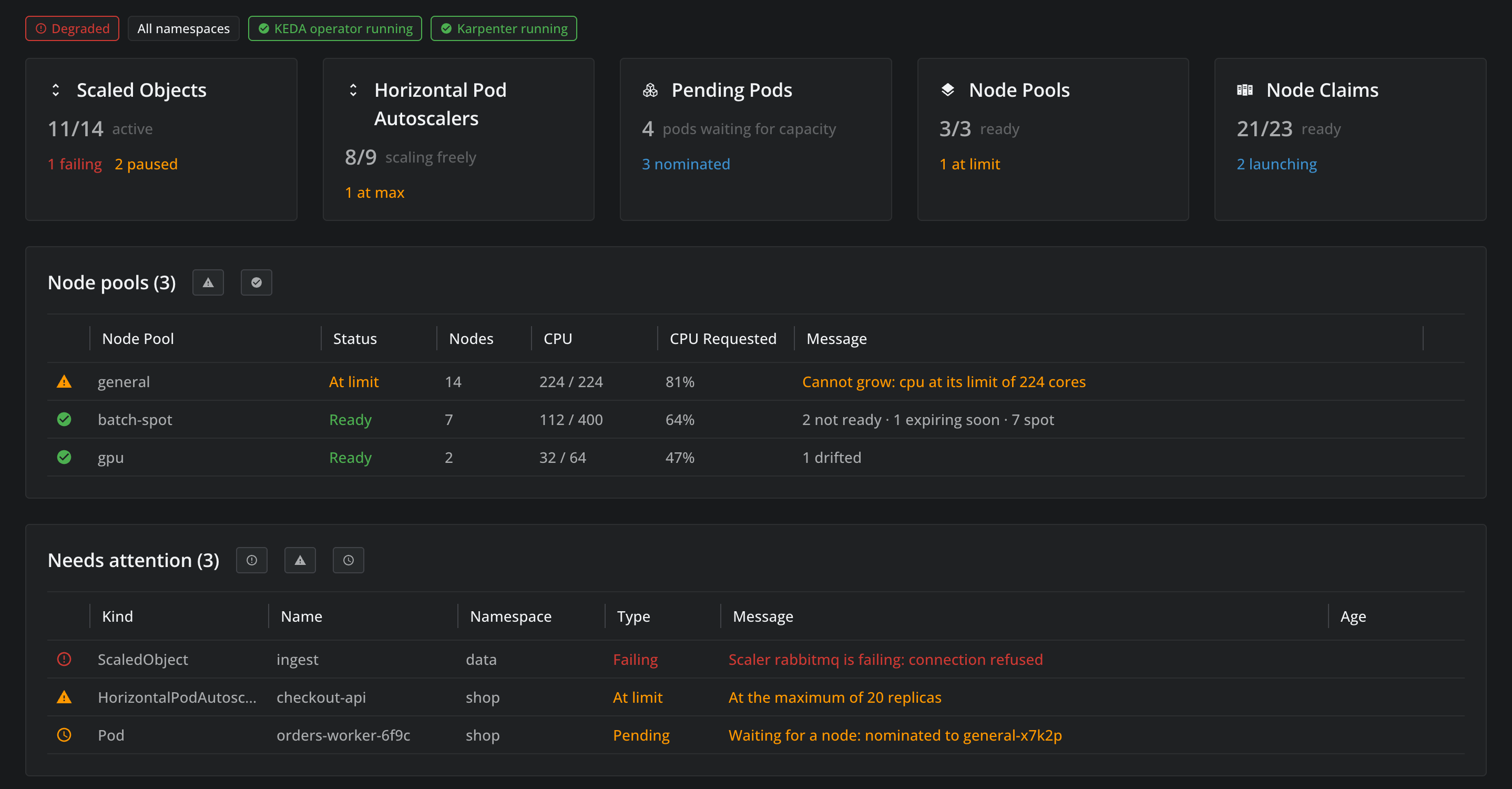
The dashboard covers the namespaces selected in the tab.
Status chips#
- Health: Degraded when an autoscaling resource is failing, Constrained when pods wait for capacity or an autoscaler hit a limit, and Healthy otherwise. Select a chip that is not healthy to go to Needs attention.
- Namespaces: All namespaces, or how many namespaces are selected.
- Controllers: KEDA operator running and Karpenter running, or not running. Hover over the chip to see the version and the available replicas.
Toolbar#
Pause and Resume act on many KEDA scalers at once. See Pause or resume KEDA scalers.
Summary tiles#
The dashboard shows one tile for each kind you can list. Select a tile to open its list.
| Tile | Shows | Also counts |
|---|---|---|
| Scaled Objects, Scaled Jobs | Active out of the total | Failing, on fallback, paused |
| Horizontal Pod Autoscalers | Scaling freely out of the total | Failing, at max |
| Pending Pods | Pods waiting for capacity | Nominated to a node, Karpenter cannot place |
| Node Pools | Ready out of the total | Not ready, at limit |
| Node Claims | Ready out of the total | Launching, drifted, disrupting, terminating |
Node pools#
The table lists each Karpenter node pool with its Status (Ready, Not ready, or At limit), Nodes, CPU against its limit, and CPU Requested. The Message column says why a pool at its limit cannot grow, or counts its nodes that are not ready, drifted, expiring soon, protected from disruption, or spot.
Needs attention#
The table lists what does not scale as asked, in this order:
| Type | When |
|---|---|
| Failing | A KEDA scaler fails or runs on fallback, a standalone HPA cannot scale, a node pool is not ready, or a node claim is still not ready after 10 minutes |
| At limit | An HPA is pinned at its maximum replicas while its metrics call for more, or a node pool reached the limit of a resource |
| Pending | A pod waits to be scheduled. The message is Karpenter's latest event or the scheduler's message |
| Disrupting | Karpenter is replacing a node claim, or the claim drifted |
| Paused | A KEDA scaler is paused |
Select a row to open the resource's details. When nothing needs attention, the table shows Everything scales as asked.
Recent activity#
Events from KEDA, Karpenter, and HPAs. Kubernetes keeps events for one hour by default. Filter them by kind, namespace, or name, or show only warnings.
View resources#
| List | Columns |
|---|---|
| Pending Pods | Name, Namespace, Waiting, Scheduler, Karpenter, Age |
| Scaled Objects | Name, Namespace, Target, Min, Max, Replicas, Triggers, Status, Age |
| Scaled Jobs | Name, Namespace, Min, Max, Strategy, Triggers, Status, Age |
| Trigger Authentications | Name, Namespace, Kind, Sources, Pod Identity, Used By, Age |
| Node Pools | Name, Node Class, Nodes, CPU, Memory, Consolidation, Status, Age |
| Node Claims | Name, Node Pool, Instance Type, Capacity, Zone, Node, Status, Age |
| Node Classes | Name, Provider, Image Family, Node Pools, Status, Age |
The details of a Scaled Object show its Scaling chain, its Replica history, and its Triggers. The details of a node claim show its Disruption state, including whether it carries karpenter.sh/do-not-disrupt and what blocks its disruption.
Autoscaling also adds to other views:
- Deployments and StatefulSets: a Scaled By row and an Autoscaling tab with the scaling chain of the workload.
- Horizontal Pod Autoscalers: a Managed By row for HPAs that KEDA manages, and a Replica history section.
- Nodes: a Karpenter tab with the node pool, node claim, instance, and expiry of the node.
Scaling chain#
The scaling chain follows a workload through the stages that scale it: the triggers or metrics, the scaler, the HPA, the pods, the nodes, and the node pools. It ends with a verdict: Scaling as asked., Scaling is under way., or Stuck at the stage that holds it back, with the reason.
Replica history#
A chart of the current and wanted replicas of an autoscaler over 1 hour, 6 hours, 24 hours, or 7 days. Lens K8S IDE reads it from Prometheus, which has to scrape kube-state-metrics. Without Prometheus, the chart says so and points you to the cluster's metrics settings.
Pause or resume KEDA scalers#
A paused KEDA scaler stops scaling and leaves its workload as it is until you resume it. Lens K8S IDE sets the autoscaling.keda.sh/paused annotation to pause a scaler, and removes it to resume it.
Scalers managed by GitOps
When Flux or Argo CD manages a scaler, Lens K8S IDE warns you that the next reconcile may undo the pause.
To pause or resume one scaler, open the menu of a Scaled Object or Scaled Job and select Pause or Resume.
To pause or resume many scalers at once:
- On the Autoscaling dashboard, select Pause or Resume.
- Pick the scalers. Filter by kind, namespace, or name, or use the all and none shortcuts. Pause starts with none selected, and Resume starts with all of them selected.
- Select the button that names the action and the count, for example Pause 2 scalers.
Pause is available on KEDA 2.12 or later for Scaled Objects, and 2.11 or later for Scaled Jobs. Older versions ignore the annotation.
Hold a scaler at a fixed replica count#
To keep a workload at a set number of replicas whatever its triggers say:
- Open the menu of a Scaled Object and select Pause at replicas….
- Enter the number of replicas, zero or more.
- Select Pause at with the count.
Lens K8S IDE sets the autoscaling.keda.sh/paused-replicas annotation. Select Resume to let KEDA scale again.
Protect a node from disruption#
Karpenter consolidates and replaces nodes on its own. To stop it for a node:
- Open the menu of a node that Karpenter manages, or of a node claim with a registered node.
- Select Protect from disruption. To undo it, select Allow disruption.
Lens K8S IDE sets the karpenter.sh/do-not-disrupt annotation on the node. A protected node still expires, and the cloud provider can still reclaim it.
Ask AI about autoscaling#
When Ask AI is set up, select Summarize in the context menu of a Scaled Object, Scaled Job, trigger authentication, node pool, node claim, or node class. Each list except Pending Pods also has the Ask AI button in its toolbar.
Related topics#
-
Requirements, premium access, and how the Autoscaling entry is detected.
-
Set up the Prometheus that the replica history reads from.