Configure Cost Monitoring#
Lens premium subscription feature. See details on Lens Pricing.
You need a Plus, Pro, or Enterprise subscription plan, or a Personal subscription with an active trial (see Lens Pricing ).
View the Cost Monitoring entry#
Unlike Flux CD or Argo CD, Cost Monitoring needs no CRDs in your cluster. The Cost Monitoring entry appears automatically under every connected cluster, next to Overview and Nodes, once you have access to the feature.
To open it:
- Connect to a cluster.
- In the cluster navigator, select Cost Monitoring.
Lens shows figures as soon as a source is available. With no OpenCost or Kubecost running, and cluster metrics configured, the estimate provides figures with nothing to install.
Info
Cost Monitoring access has three states: available, disabled by your administrator, and not included in your subscription. Without access, selecting Cost Monitoring opens an upsell page instead of cluster data. Your administrator can disable the feature for managed installations.
Cost settings#
Cost Monitoring is configured per cluster, in the Cost section of the cluster settings. To open it from the dashboard, select Settings in the status bar.
Source#
Lens reads costs from one of these sources:
| Source | What it gives you |
|---|---|
| Automatic | The best source the cluster has. Lens looks for Kubecost, then OpenCost, and falls back to the estimate. |
| Kubecost | Measured figures from Kubecost running in the cluster. Kubecost includes OpenCost's engine. |
| OpenCost | Measured figures from OpenCost running in the cluster. These match your bill once you configure its cloud integration. |
| Estimate | Figures worked out by Lens from the cluster's own usage at on-demand list prices. Nothing to install. |
| Off | No cost figures for this cluster. |
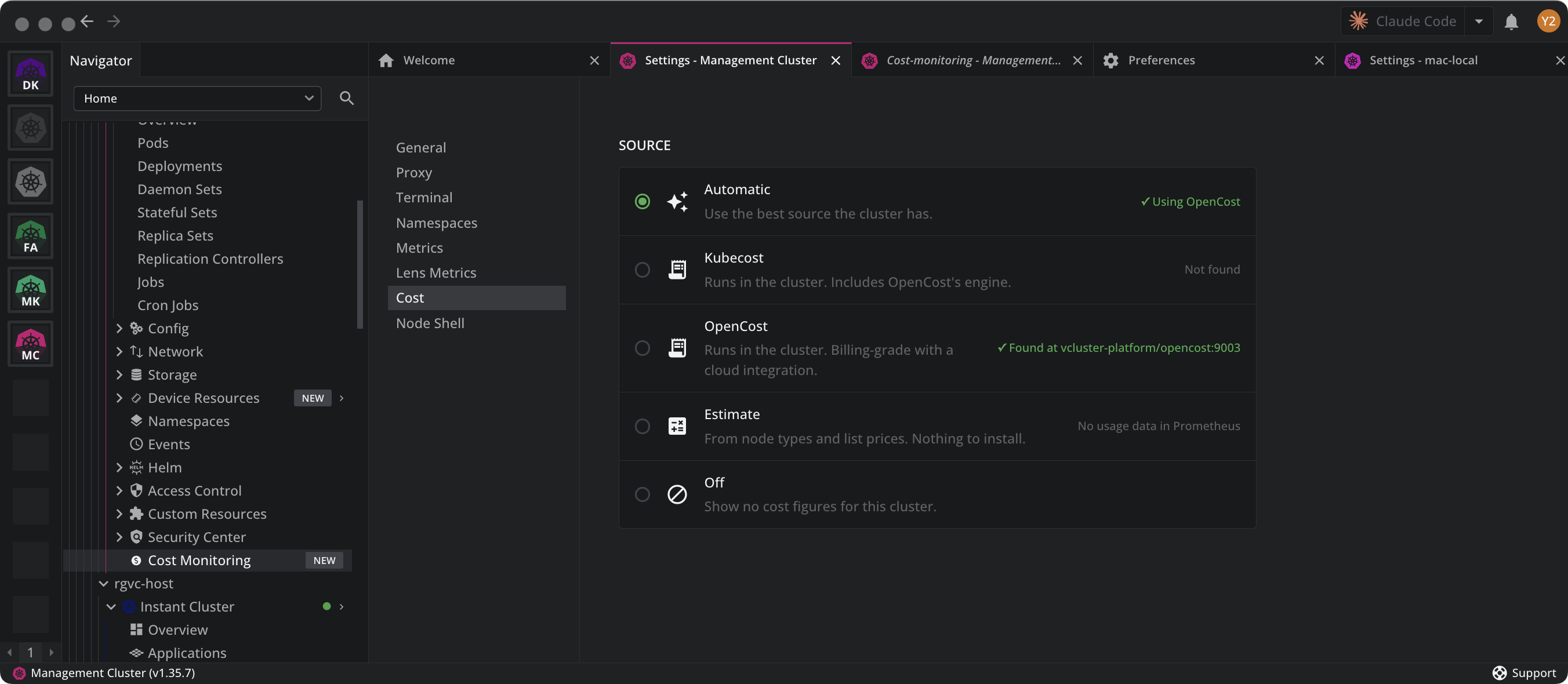
To change the source:
- Open the Cost section of the cluster settings.
- Select a source.
- For Kubecost or OpenCost, enter the address of the service as
namespace/service:portif Lens did not find it.
Each source reports what Lens last found for it:
| Status | Meaning |
|---|---|
Ready |
The source is available and Lens can read from it. |
Found at <address> |
Lens found the service at that address. |
Not found |
Lens looked for the source in the cluster and did not find it. |
Could not check |
The check itself failed, for example because the cluster was unreachable. |
No usage data in Prometheus |
The estimate found no usage to price. |
Automatic reports which source it settled on, such as Using Kubecost or Using the estimate. It reports this only while Automatic is the choice, because choosing a source makes Lens ask that source alone.
Note
The estimate prices the cluster's usage at on-demand list prices. Reservations, savings plans, negotiated discounts, egress, and load balancers are not in it, so it does not match your bill. It prices CPU and memory only, so Storage and Network report zero. Install OpenCost or Kubecost for figures that cover them.
Rates#
The Rates block appears while the estimate is the cluster's source. It shows what a node-hour is worth in this cluster, prefilled from list prices for the node types the cluster runs.
At the top, the rates add up to a run rate: the cost per hour and per month. Next to it are the node count, the number of distinct types, and how many rates you have set yourself.
Below it are two lists:
- Node types. One row per node type in the cluster, with the hourly rate the estimate prices it at. Type over any figure to set your own rate, and the estimate uses it from then on. Clear the field to go back to the list price.
- Fallback rates, for nodes the catalogue does not know. A CPU and a memory rate for a node whose type is not in the bundled catalogue, and a spot discount applied against the on-demand rate.
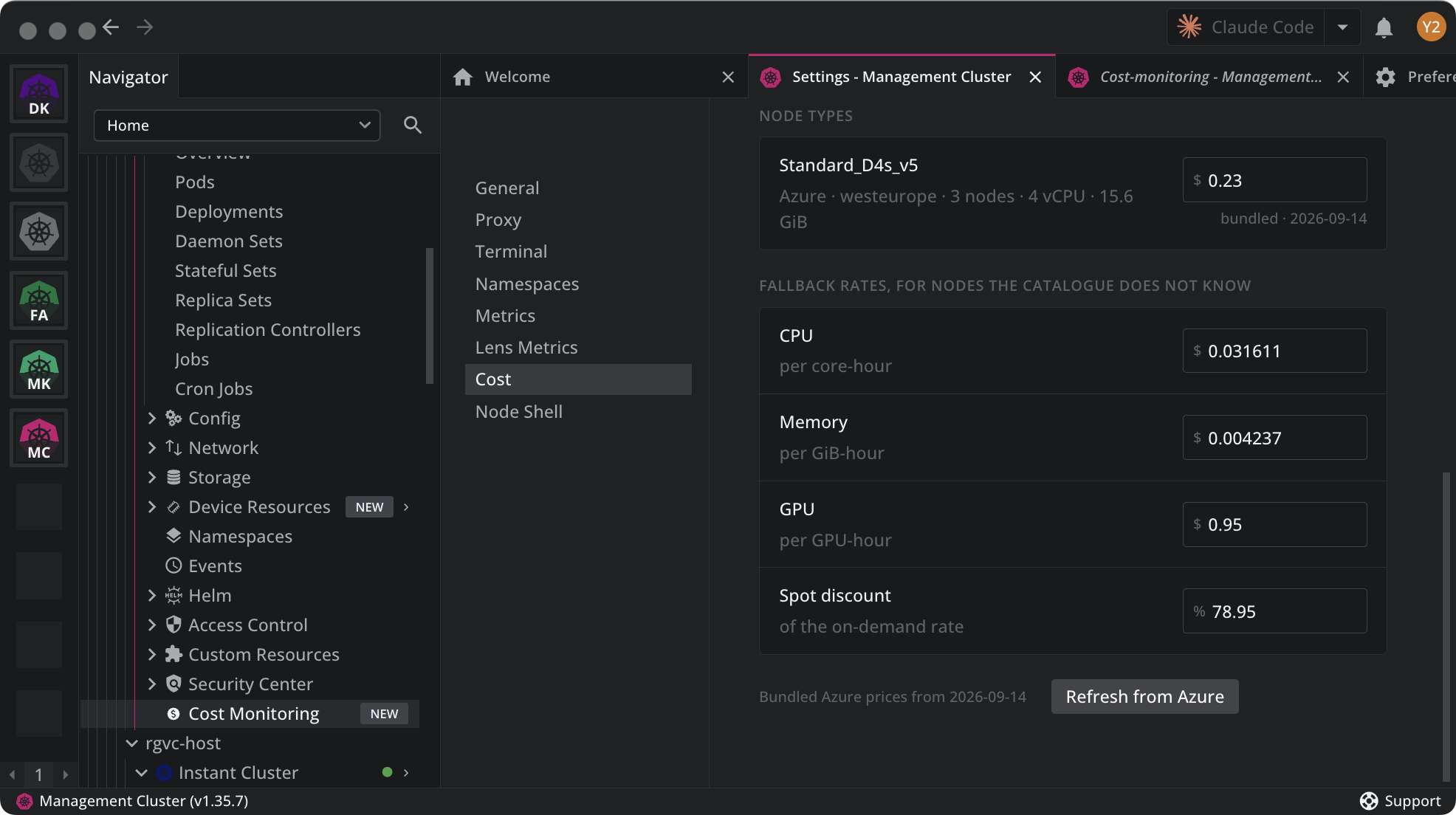
Lens states the age of what it prices with, as Bundled AWS prices from <date> for each cloud. On a cluster with Azure nodes, select Refresh from Azure to fetch current prices from Microsoft's retail price list, and Lens then reports Fetched from Azure <date>.
Note
The estimate needs metrics configured for the cluster. Set them up first if you have not already.