Lens 2026.10.51501-latest - Release#
The new Stable release of Lens Desktop is here.
To ensure a smooth transition and minimize disruption we'll start by rolling out the update to a small portion of our users, then incrementally increasing this number until all users have access to the update. If you have not received the update and wish to try it out, you can download this version manually at our website .
Key Features#
Extensions: build your own with your AI tool, or install one from the Marketplace#
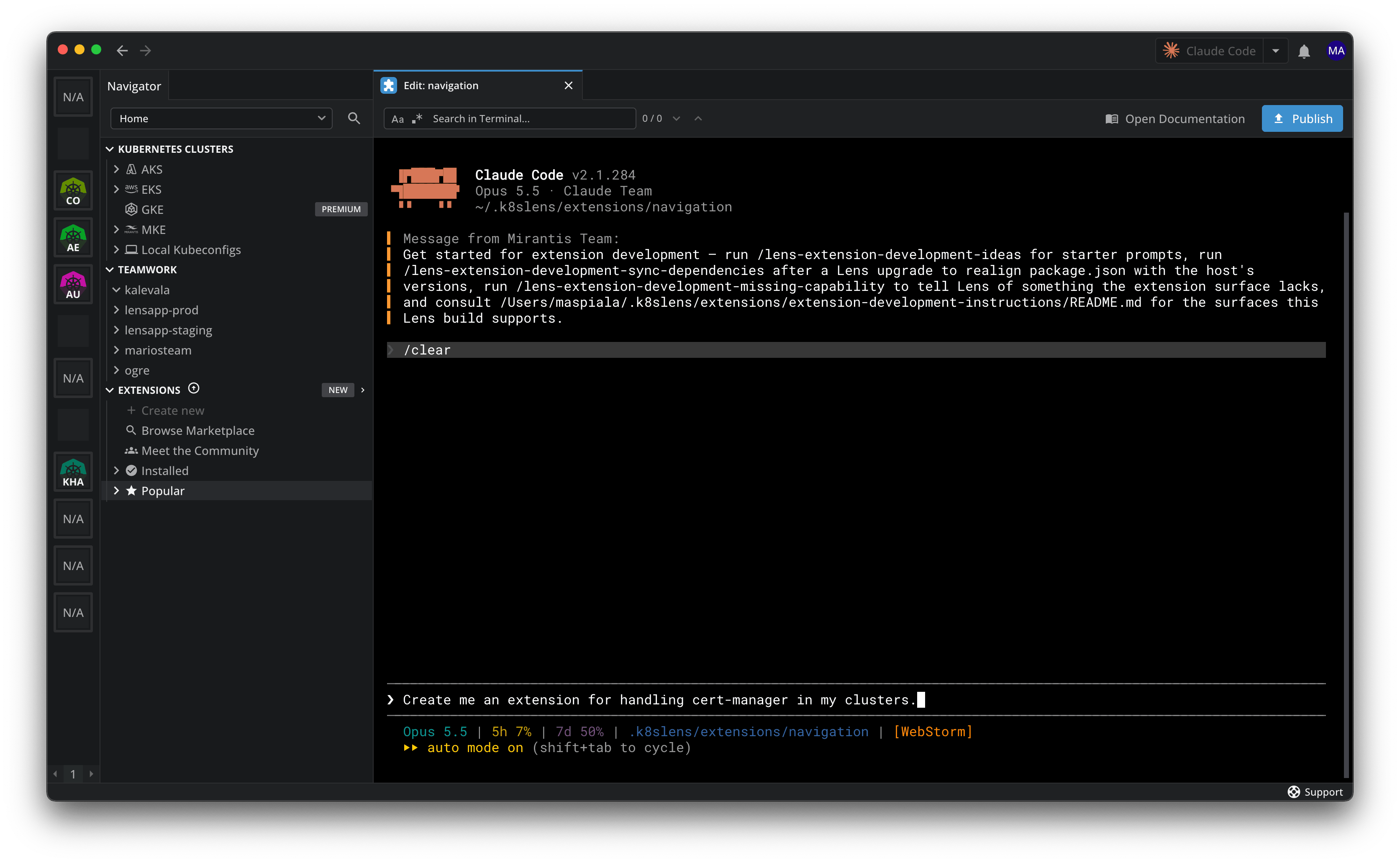
Extensions have a new home in Lens. They now live in the navigator, and everything you can do with them is a click away: create one, browse the Marketplace, install, update, edit and publish.
Building an extension no longer needs a development setup. Choose Create new, give your extension a name, and Lens sets up the project and opens it in your AI tool, be it Claude Code, Codex CLI, Gemini CLI, GitHub Copilot CLI or OpenCode. Then describe what the extension should do, in plain words, and see it take shape in Lens as the tool writes it. Extensions can add their own views, navigator items, menus, terminal tabs, preference pages and even windows of their own. When it is ready, the Publish button puts it on npm for everyone else. No terminal needed.
Browse Marketplace lists every extension published by the community, the most downloaded first, with search, sorting and filters, and a By Lens badge on the ones we make ourselves. Every extension has a details page with its README, changelog, versions and download numbers. Install with a click, and let Lens keep your extensions up to date on its own if you like. Popular shows the most downloaded extensions you have not installed yet. Meet the Community takes you to the Lens Slack, where you can ask for help, share what you are building and hear what is coming.
Found an extension that almost does what you want? Clone brings its source code to your computer and opens it for editing with your AI tool. And if you work without internet access, extensions can still be installed from a file on your computer.
Anyone can browse the Marketplace. Extensions is a premium feature.
Google Kubernetes Engine#
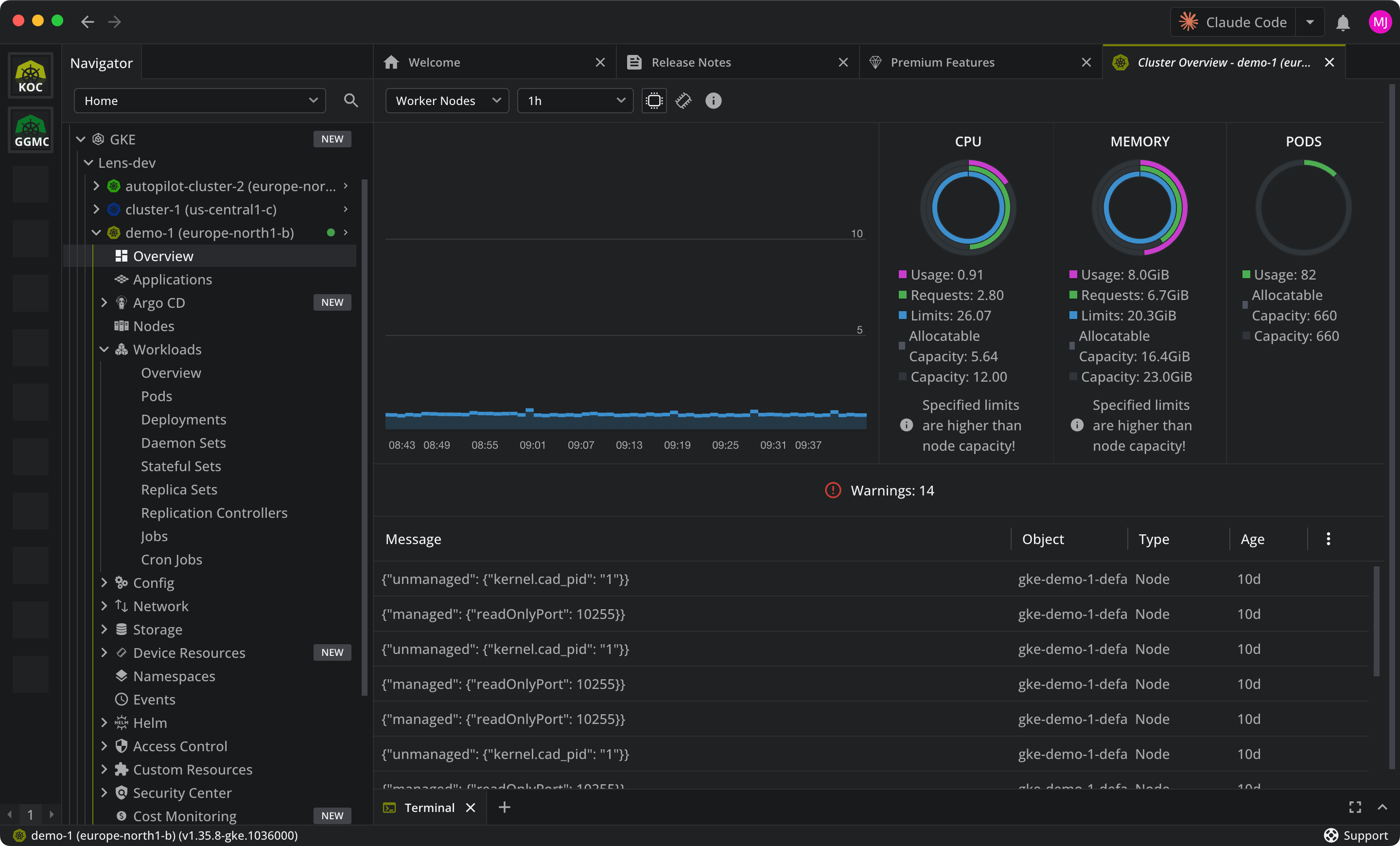
Your GKE clusters, right in Lens. Sign in with your Google account, pick a project, and Lens finds every cluster in it, ready to open with a click. No gcloud to install, no kubeconfig to copy, no keys to manage. Private clusters work too, through their DNS endpoint.
Your Google Cloud projects sit beside AKS and EKS in the navigator and on the Integrations page, and GKE is offered when you first set up Lens. Projects can be renamed and removed from the navigator, and if a project needs you to sign in again, it says so and a click starts the sign-in. Google Kubernetes Engine is a premium feature.
Enhancements#
- Preferences > Terminal has a new Terminal Shell Arguments field. Add startup arguments for your shell, such as
-NoProfileor--norc, one per line, and both the cluster terminal and the in-app terminals start with them - An AWS EKS entry with no profiles now offers Add AWS Profile, and an Azure AKS entry with no organizations offers Add Azure Organization, so the first step is right where you look for it
- The Integrations page shows the status of each connection, and each cloud lists the profiles, organizations or projects you have added
- The Helm Releases view uses less CPU and memory on clusters with many Secrets
- A new Window menu has Minimize, and on macOS Zoom, Bring All to Front and the list of open windows, with Close Window on Windows and Linux
- The navigator remembers which branches you had open and opens them again the next time you start Lens
- Lens now runs on Electron 44 with Chromium 152. macOS 12 Monterey is no longer supported, so Lens needs macOS 13 Ventura or later
Bug Fixes#
- Resource lists and the details panel keep updating after the computer wakes from sleep or the network comes back, with no reload needed
- Going back and forward between tabs works more reliably
- The Helm Releases list no longer reloads whenever any Secret in the cluster changes, so its context menu stays open and the list settles on busy clusters