Modify a deployment#
You can change deployments through Lens K8S IDE. To modify a deployment:
- Connect to the cluster from Catalog > Clusters.
- Navigate to Workloads > Deployments through the left panel.
- Right-click on a deployment and select Edit in the right column. The deployment opens in an editor tab.
- Edit the deployment
.yamlfile and click the floppy-disk icon (Save) in the editor toolbar.
Review and roll back your changes before you save#
Lens premium subscription feature. See details on Lens Pricing.
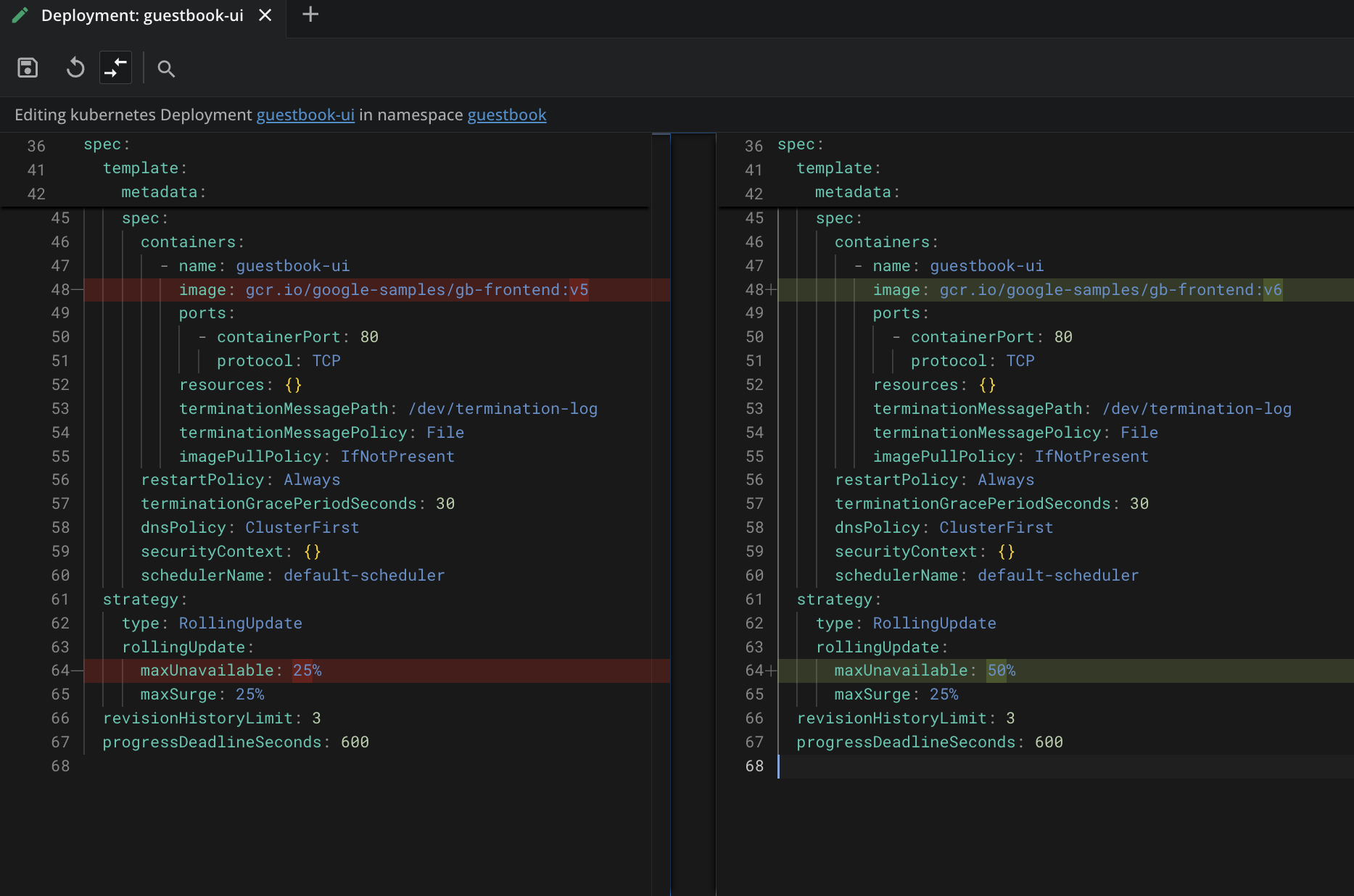
The advanced editor compares your edits against the version the editor loaded, so you can check what you are about to apply and roll it back if you change your mind. Both actions sit in the same editor toolbar as Save. To review your changes:
- Edit the deployment
.yamlfile, but do not save yet. - Click the compare-arrows icon (Show changes) in the editor toolbar. The editor splits into two panes: the loaded version on the left and your edited version on the right, with the changed lines highlighted.
- Check the highlighted lines. You can keep editing in this view.
- To roll back your edits and restore the loaded version, click the circular-arrow icon (Revert to original). The icon activates once your content differs from the loaded version, and nothing reaches the cluster until you save.
- Click the compare-arrows icon again (Exit diff view) to return to the single-pane editor, then click the floppy-disk icon (Save) to apply the deployment.
Info
Revert to original rolls back your editor content, not the cluster. Once you save, the change is applied.
For the full feature, including how the comparison baseline works and what the toolbar icons do without a premium subscription, see Advanced editor.