Install an extension#
Lens premium subscription feature. See details on Lens Pricing.
Lens K8S IDE installs extensions from the built-in Extension Marketplace, from inside the app. It can also load a local extension straight from your filesystem, which is how your own extensions run while you develop them.
Extensions are published to npm with the lens-extension keyword, and anyone can publish one, so install only extensions from publishers you trust.
Install from the marketplace#
To install an extension from the marketplace:
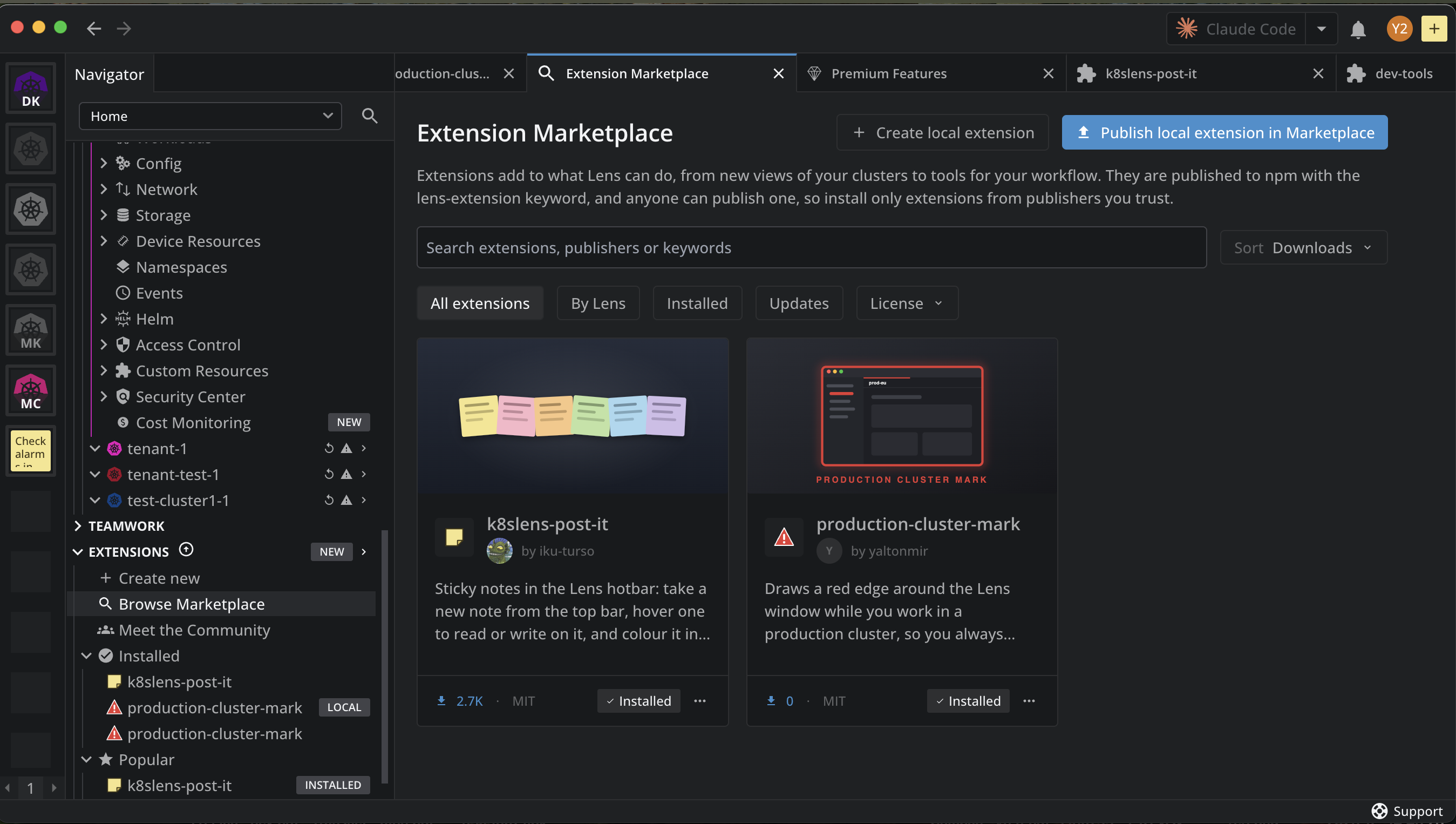
- Open Extensions in the Navigator and select Browse Marketplace.
-
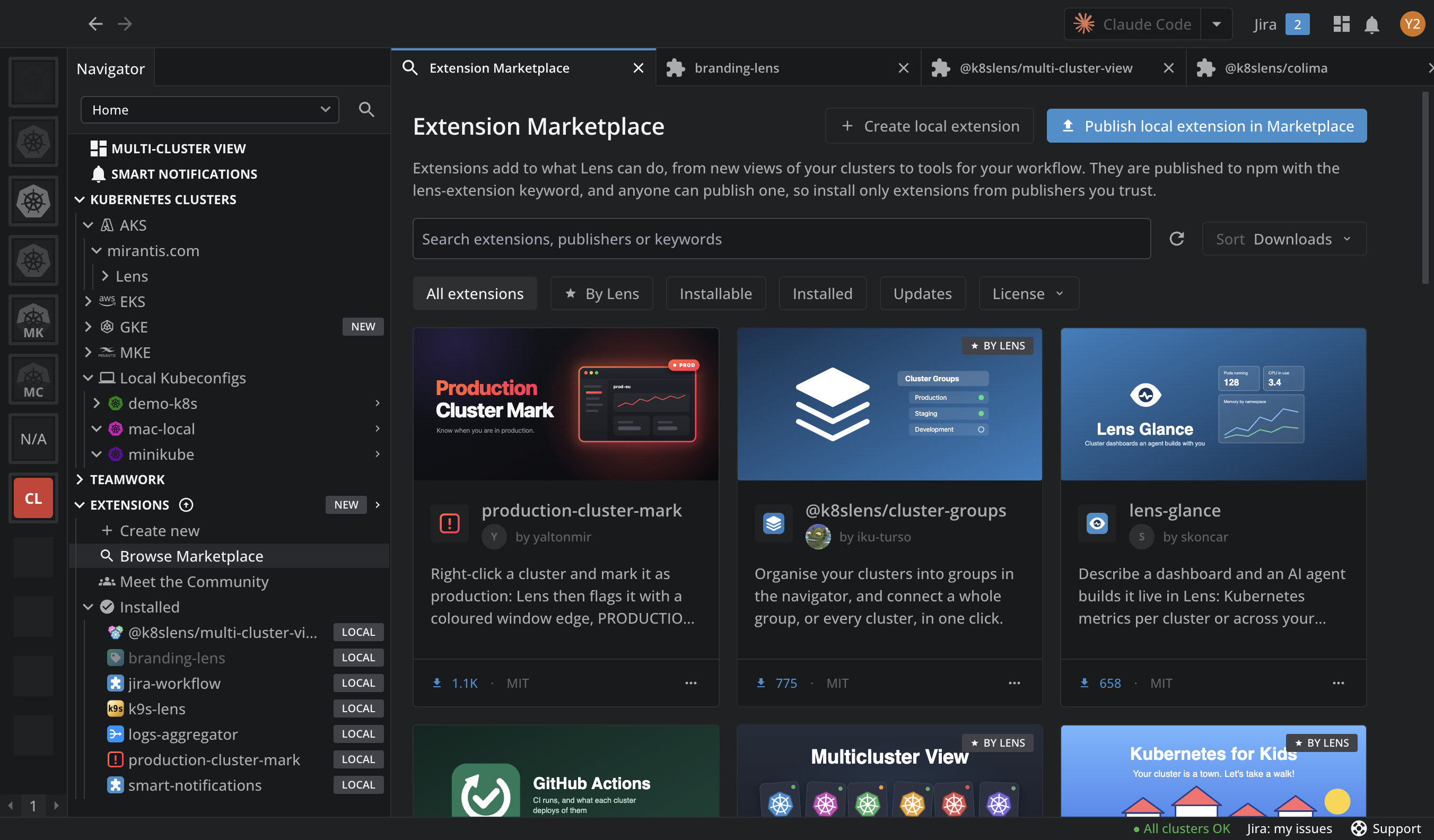
Search by extension, publisher, or keyword, and sort by Downloads, Name, or Date. The filter chips narrow the list. By Lens keeps the official extensions, Installable the ones you can install now, Installed yours, and Updates the installed ones with a newer version. License keeps the licenses you pick, and All extensions clears the filters and the search. The refresh button next to the sort order asks npm for the list again. For the marketplace in full, in Lens and on the web, see Extension Marketplace.
-
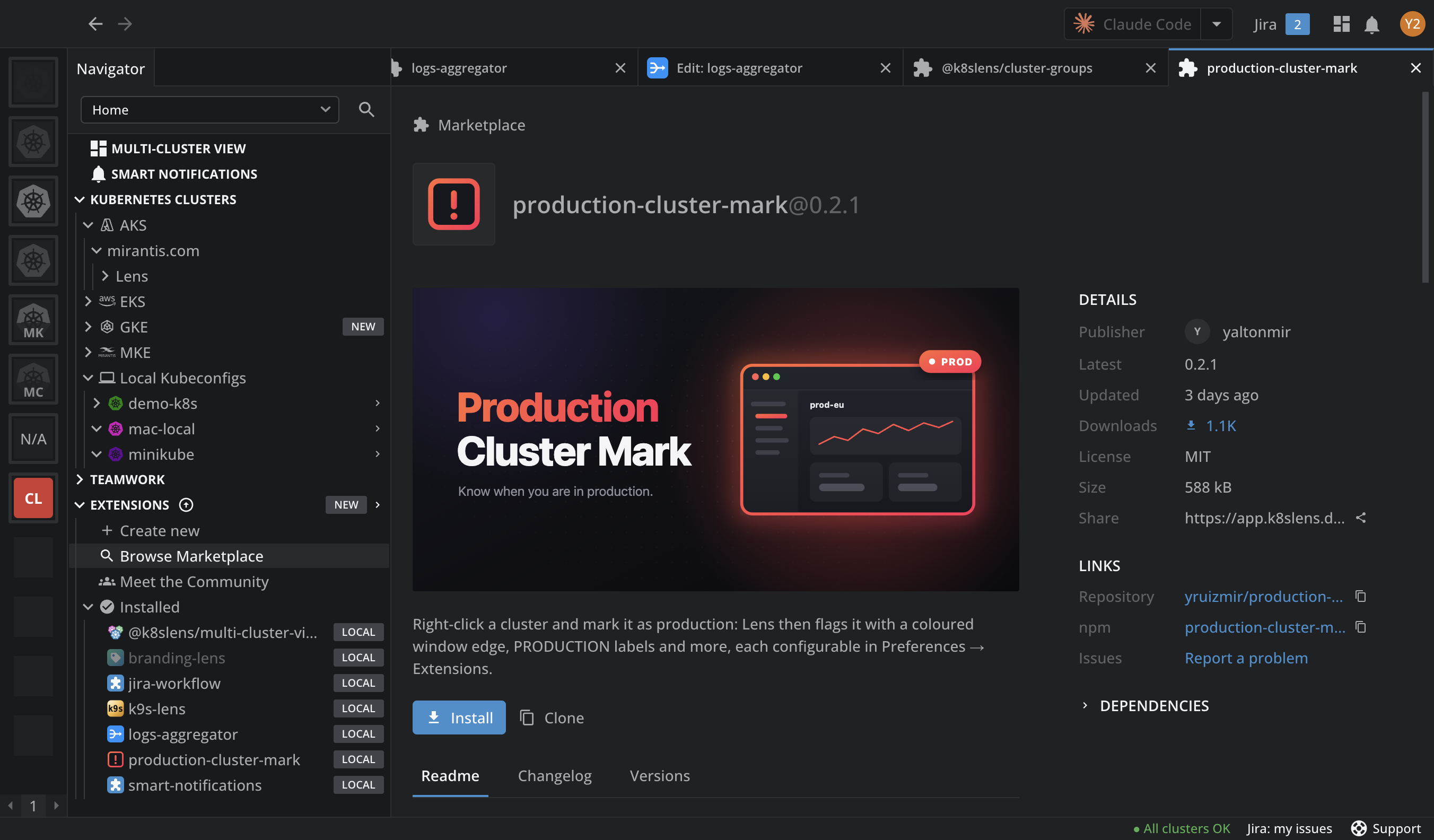
Open the extension to see its details: description, README, changelog, versions, downloads, license, size, and links to its repository and npm page. Downloads is the all-time total from npm. Hover it to see the last month as a graph.
-
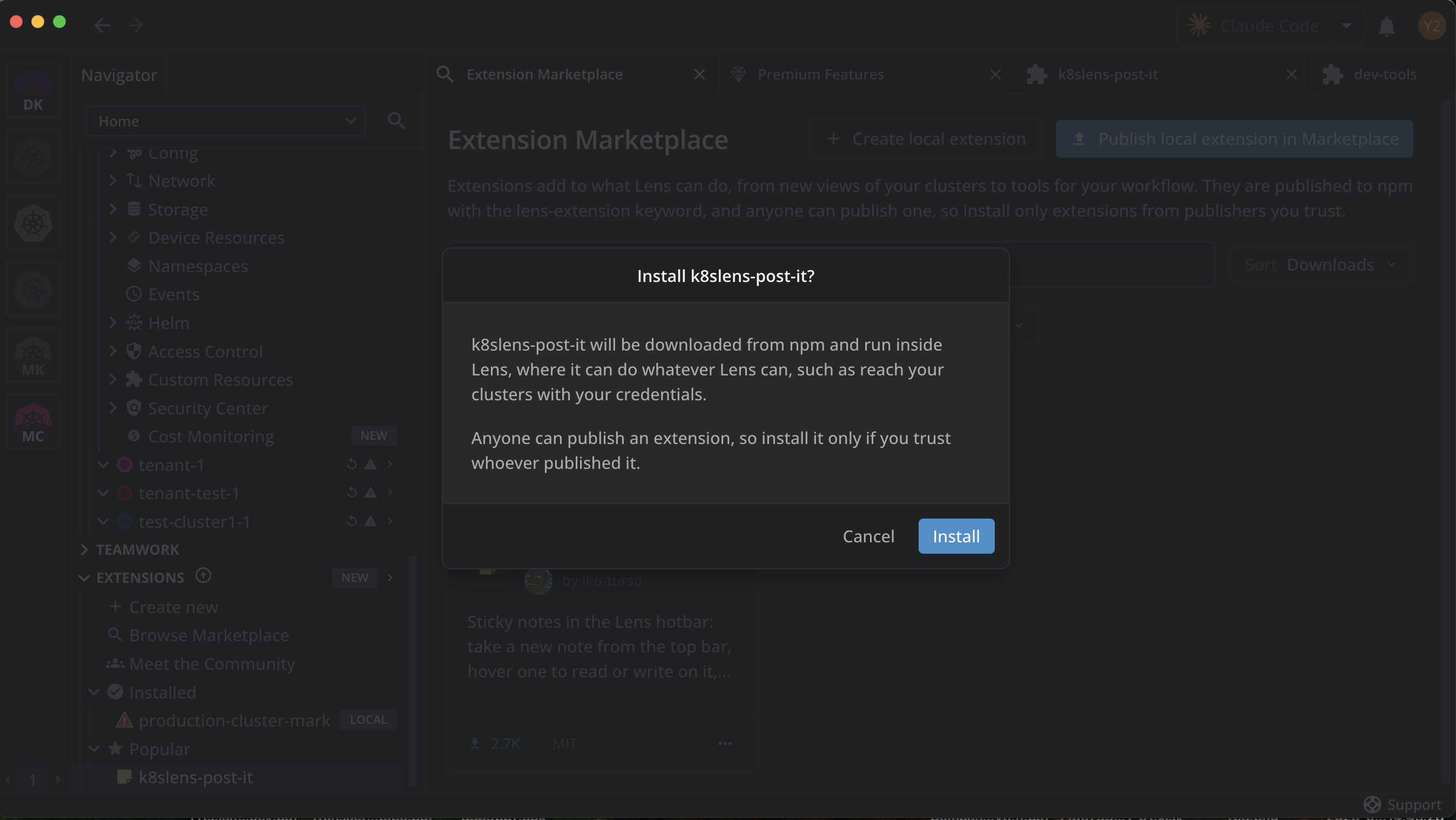
Click Install, and confirm.
You can also install without opening the details page: right-click the extension's card in the marketplace, or click its ... menu, and select Install. It asks for the same confirmation.
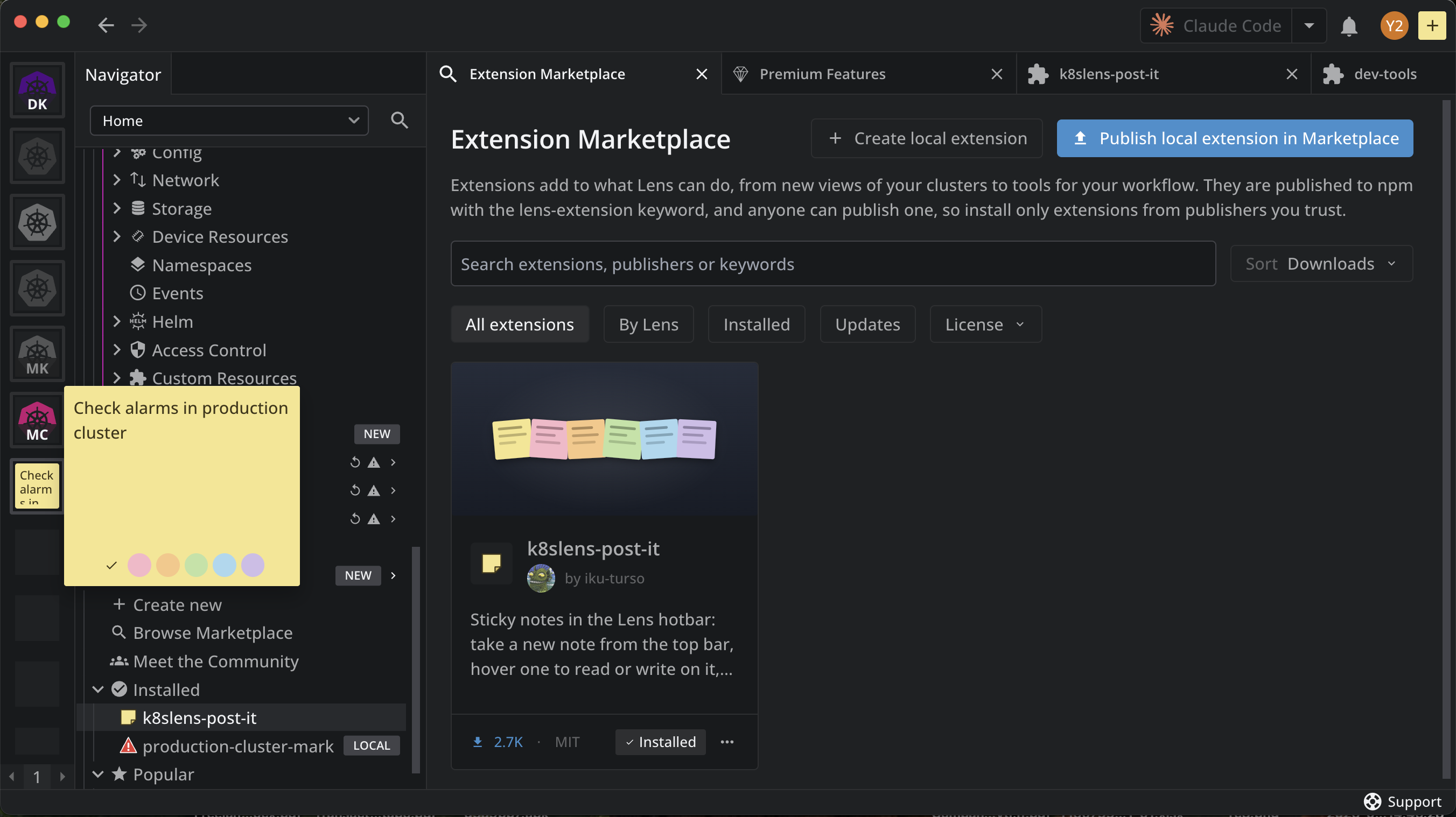
Lens downloads the extension from npm and activates it. It appears under Installed in the Navigator's Extensions section, where your own local extensions carry a LOCAL mark. Its marketplace card shows Installed. The extension works right away.
Note
An installed extension runs inside Lens and can do whatever Lens can, such as reach your clusters with your credentials. Install extensions only from publishers you trust.
While the install runs, the extension's row under Installed shows what Lens is doing: Resolving..., Downloading..., Installing dependencies..., then Installing....
An extension depends on package versions that your Lens build serves. Lens installs the newest version that fits your build, which is not always the latest, and refuses the install when no version fits. See Compatibility matrix.
Share an extension#
Every marketplace extension has a link that opens it in another user's Lens. To copy it, do one of the following:
- Under Extensions > Installed in the Navigator, right-click the extension, or hover it and click its ... menu, and select Share.
- In the marketplace, right-click the extension's card, or click its ... menu, and select Share.
- On the extension's details page, click the share button next to Share, under Details.
Lens copies the link and confirms it: "The link to <NAME> was copied. Give it to someone you want to install the extension." The link has this form:
https://app.k8slens.dev/lens-launcher?c=lens%3A%2F%2Fapp%2Fopen%2Fextension%3Fname%3D<NAME>
Whoever opens it in a browser, with Lens K8S IDE installed, lands on the extension's details page in their Lens, with Install ready. The README of an extension created in Lens carries the same link in its Install section, so the extension's npm page offers it too.
A local extension has no Share item: the link names the package on npm, so publish the extension first. See Publish an extension.
Install a local extension from the filesystem#
Use this for an extension that exists as a folder on your machine, for example one you are developing or reviewing. To install it:
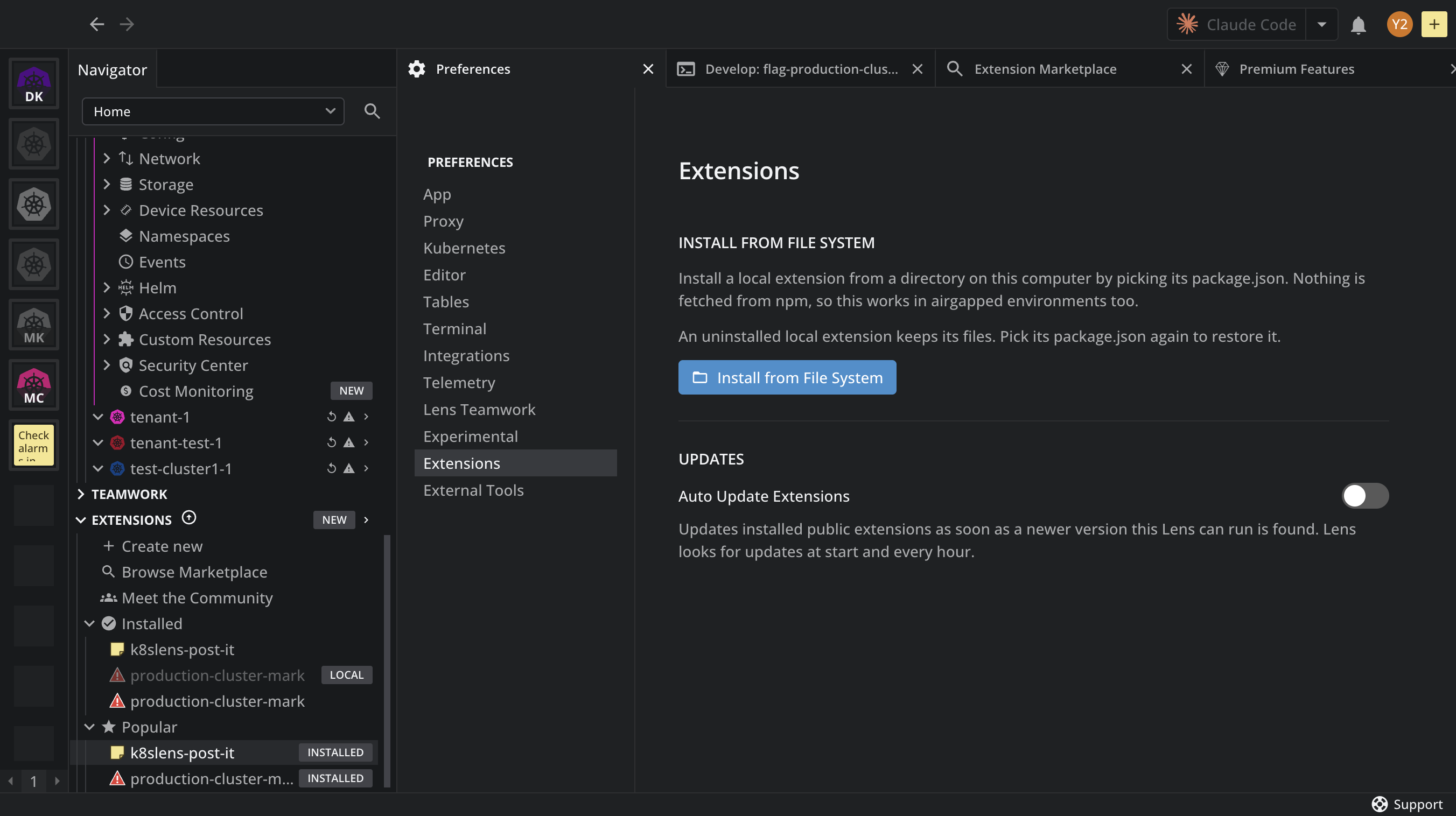
- Navigate to Preferences > Extensions.
- Click Install from File System.
- Select the extension's
package.jsonfile.
Lens installs the extension right away, from your disk only, so this works in airgapped environments too. The extension loads from its dist/index.js. Its require() calls resolve first against the modules Lens ships, then against the extension's own node_modules, so the dependencies in its package.json work as in any Node package.
Manage installed extensions#
The Installed section under the Navigator's Extensions item lists each installed extension. Hover one to open its card, with its version, description, and a switch that shows its state:
| State | Meaning |
|---|---|
| Enabled | The extension is active and running. |
| Disabled | The extension is installed but not loaded. |
| Held back | Your organization does not allow the extension, so Lens keeps it installed but does not load it. |
A red error icon next to the name marks an extension Lens could not load. Hover the icon to read the error, for example "Extension is incompatible." Rows can also carry a badge:
- LOCAL: an extension you created, cloned, or installed from your filesystem.
- PUSHED: an extension your organization installs, keeps on, and updates for you.
To turn an extension off without removing it, use the switch on its card, or select Disable in its right-click or ... menu. The state persists across restarts.
A local copy and its published version#
Installing an extension from the marketplace does not replace a local extension of the same name. After you publish your own extension and install it from the marketplace, Installed lists it twice: the local one, with its LOCAL mark, and the one downloaded from npm, without it. To keep only one, disable or uninstall the other.
Extensions your organization controls#
If your organization has Lens Enterprise, its administrator can decide which extensions run in Lens: allow or block extensions and versions, set a minimum version, install extensions for everyone, and forbid local extensions or publishing. An extension your organization does not allow is Held back, and one it installs for everyone carries the PUSHED badge. See Extension governance.
Where extensions are stored#
- Marketplace extensions are downloaded to
public-extensions/installed/<NAME>/<VERSION>/in the Lens user data directory, and loaded from there at every start. Lens removes leftover folders of versions it no longer uses at start. - Local extensions stay where they are. Lens remembers the path of the extension's
package.jsonand loads it from there, so moving or deleting the folder breaks the extension: a red error icon marks it under Installed, and its tooltip says Lens could not read thepackage.json. Install it again from its new location.