Web UI#
The runtime serves a browser UI on the same port it listens on. Open it at http://localhost:3003.
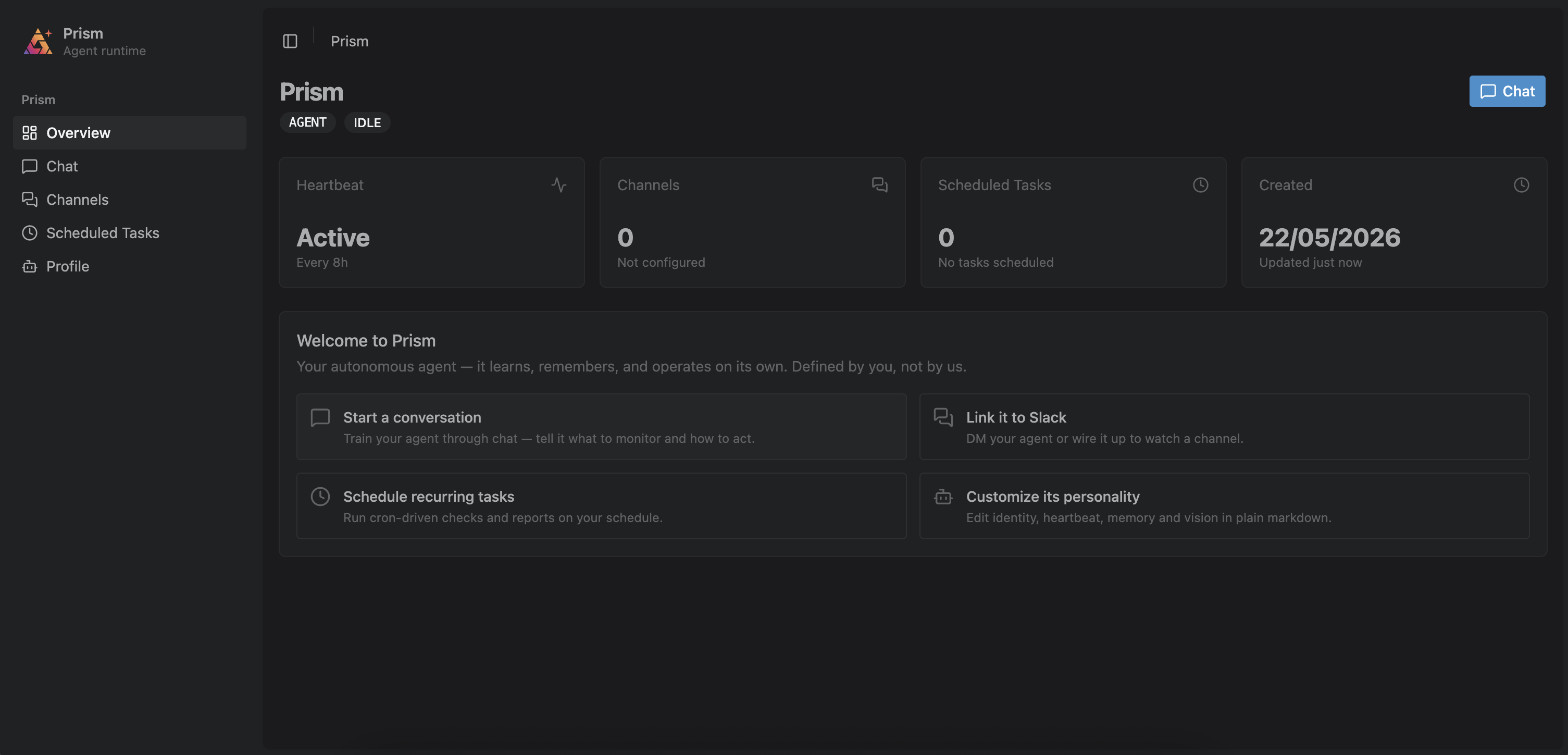
The left sidebar groups the pages: Overview and Chat under Workspace; Channels, Scheduled Tasks, and Webhooks under Automation; Profile, Computer, and Activity under Agent. Computer appears only on a runtime that ships the agent's desktop toolchain. New chat at the top of the sidebar starts a conversation from any page. The dot on the agent's mark shows what it is doing now: green for idle, blue for working, and red for an error. Press Ctrl+B (⌘B on a Mac), or the button at the top left, to collapse the sidebar to icons.
Press Ctrl+K (⌘K on a Mac), or click Search in the sidebar, to open the command palette. Type part of a page's name or of a conversation's title, then press Enter to go there. New chat and Toggle sidebar are in the palette too.
There's no separate login for the bundled single-agent runtime — it serves your one agent directly.
Overview page#
The landing page shows the agent's status (Working, Idle, or Error), its model, and when it was created, with Edit profile and Start chatting buttons. Four cards show the heartbeat state, the linked Slack channels, the scheduled tasks, and the tokens used in the last 24 hours. Each card opens the page that manages it. Below them are your most recent conversations, and a setup checklist that ticks off each step you have done and marks the next one. To rename the agent, use the Name field on the Profile page.
Chat#
The main conversation surface.
- Sending messages. Type in the input pinned to the bottom and press send. An empty conversation offers a few first messages; click one to send it. By default (Concise mode) the agent delivers only its final message. Turn on Verbose mode to see intermediate steps stream in as the agent works — see the verbosity setting in the configuration reference.
- Slash commands. Type
/to open a command popup — the same as the terminal UI: filter by typing, Tab to complete, arrow keys to move the selection, Enter to run. The web UI supports/help,/skills(list installed skills, or/skills run <NAME>),/plugins(list installed plugins and any load problems),/goal(set or manage a background goal), and/compact(summarize the thread's older history now — see conversation compaction). Command output appears as a system note in the conversation;/goaland/skills runstream the agent's reply in. - Voice chat. The phone button in the header starts a voice chat; the browser asks for the microphone the first time. A call bar above the conversation names who the call is with, how long it has run, and whether the agent is Speaking or Listening, and holds the mute and hang-up buttons. Nothing said in a call is written into the thread.
- Voice messages. The microphone button beside send records a voice message: speak, press send, and the transcribed words go into the thread as your message. ✕ discards the recording instead.
- Attachments. Attach files with the paperclip button or by drag-and-drop. Pending attachments show as chips and can be removed before sending. Up to 100 attachments per message.
- Stopping. While the agent is responding, a stop button appears next to send and cancels the in-flight turn. Send stays available: a message you send mid-response is handed to the running turn.
- Reading back. A line with the day separates messages sent on different days. While you read further up, new messages do not move the view; click Jump to latest to return to the end.
- Tool calls. A reply that used tools shows a chip with the number of tools used, and how many failed. Click it to see each call with its tool name, input, and output.
- Markdown and downloads. Agent messages render as markdown. Files the agent shares back appear as downloadable chips. The copy button under a reply, and the one on each code block, copy it to the clipboard.
- Threads. Each conversation is a thread. While the Chat page is open, the sidebar lists the 300 newest under Recents, grouped by the day they started; click one to reopen it. Once the list has six or more, a filter box above it narrows it by title. Start a fresh conversation with New chat, or with the pen button next to the Recents heading. The thread ID is in the URL (
/chat/<THREAD-ID>), so conversations are deep-linkable. A new thread gets an auto-generated title once it has content. - Connection status. A small indicator shows the live WebSocket connection state; it reconnects automatically.
- Context used. Above the input, the right-hand side shows how much of the model's context window this conversation has consumed — for example
58% context used. Hover it for the exact token counts and the model they were measured against. It's hidden when the agent runs a model the runtime doesn't recognize — seeCONTEXT_WINDOW_TOKENSin the configuration reference.
Channels#
Link the agent to Slack and Microsoft Teams. Each configured integration has its own section. Slack needs SLACK_BOT_TOKEN and SLACK_APP_TOKEN in the runtime's environment, and Teams needs TEAMS_APP_ID, TEAMS_APP_PASSWORD, and TEAMS_APP_TENANT_ID (see Slack and Microsoft Teams).
There are two modes, and they're mutually exclusive — unlink one before switching to the other.
- Personal Mode (DM). Link your Slack account to DM the agent. Click Link Account to generate a six-character verification code (it expires in about 15 minutes), then DM that code to the agent in Slack. Once linked, the page shows the linked DM; Unlink undoes it.
- Team Mode (channels). Invite the agent to channels. Click Add channel to generate a channel link code, invite the agent to the channel, and post the code there. You can link multiple channels — they're listed in a table, each with an Unlink action. One channel is the main channel (marked ★); it's where heartbeat alerts post. Use Set main to move it. The first channel you link becomes main by default.
The Microsoft Teams section works the same way. Link Account issues a code that you send to the agent in a Teams personal chat. Add channel issues a code that you send in a Teams channel with an @mention of the agent.
The page also manages Slack heartbeat triggers: designate a Slack channel so that incoming messages wake the agent's heartbeat, with a configurable throttle between triggers. See Slack-triggered heartbeats.
Scheduled Tasks#
List, create, and delete the agent's cron-driven runs.
- Each task in the list shows its name, its instruction, its schedule as a cron expression (for example
0 9 * * *) and, for a common schedule, in words, whether it is active, and its next and last run. - New task opens a form: a name, a cron expression, and the instruction that tells the agent what to do on each run. Common schedules, such as Weekdays at 09:00, fill in the expression with one click. The form names the agent's time zone, which every schedule runs in.
- The delete button removes a task after a confirmation.
The web UI create form takes raw cron expressions. The agent itself, and the TUI, also accept natural-language schedules — see Scheduled tasks.
Webhooks#
Let external systems trigger the agent by POSTing JSON to a named endpoint.
- Webhook receiver starts disabled. Turn it on to open the webhook port; turn it off to close the port. Your subscriptions are kept.
- New subscription creates a named route (
/agents/webhooks/<NAME>) with an optional description and event-type filter, then two sections. Delivery holds the target (All channels, Chat, Slack, Microsoft Teams, or None), for Slack the linked channels to post to, a deliver-only mode that posts the rendered template without running the agent, and the prompt template. Authentication holds the scheme — a shared token in a header, an HMAC signature of the body, or None — and the header, prefix, and secret it checks. - Each row shows the endpoint path with a button that copies its full URL, the authentication scheme (
Unverifiedwhen there is none), an Active switch (paused subscriptions reject events), an Edit action that opens the form with every setting but the name, and a delete action.
See Webhooks for the endpoint contract, authentication recipes, prompt-template syntax, and sender configs.
Profile#
The agent's identity and runtime controls.
- Name and models. Edit the agent's display name (1–64 characters) and its LLM model ID inline. Reset returns the main model to the runtime default. Separate Heartbeat model and Scheduled-task model fields let you run those on their own model; leave a field empty to inherit the main model. See Configuration.
- Chat delivery. A toggle switches between Concise (default) and Verbose mode. In concise mode only the agent's final message is delivered; intermediate steps are persisted but not shown. See chat verbosity.
- Locked-in mode. A toggle freezes the agent's identity documents against its own tools — Soul, User, Memory, Vision, Heartbeat, and Bootstrap become read-only to the agent, while settings, renames, and vector memory keep working. The agent cannot turn this off itself. See locked-in mode.
- Identity documents. Seven tabs hold the agent's markdown documents — Agent (guide), Soul, User, Heartbeat, Memory, Vision, and Bootstrap. Each tab is an editor: change the text and press Save, and the agent picks the document up on its next turn. Add an optional note about what changed, which the history keeps. Saving the Heartbeat document also restarts the heartbeat. The Version history sidebar compares a saved version with the current document and restores it. See version history.
- Heartbeat controls. A status panel shows whether the heartbeat is Active or Stopped, its interval, the last run time, and a consecutive-error count. Buttons let you Start, Stop, or Trigger now, and you can edit the interval inline (1–10080 minutes). See Heartbeat.
- Backup and restore. Export downloads a
.prismsnapshot of the entire agent — chat history, memory, scheduled tasks, settings, and Slack mappings. Restore replaces the agent from a.prismfile; the runtime restarts and the page reconnects when it's back.
Warning
Restore is destructive — it replaces the current agent entirely. Export a .prism snapshot first if you want to keep the running agent.
Computer#
The agent at a desktop of its own: its screen fills the page, and you can take control of the cursor and keyboard, finish a step it asked for help with, or press Talk to speak to it. When the agent asks for help, the chat also opens the desktop in a panel beside the conversation. A request for a website that asks only for a username and a password opens no panel: the message itself, Prism needs a sign-in, carries the sign-in form. The section is present only on a runtime that ships the desktop toolchain. See The agent's computer.
Activity#
What the agent has spent, and what it has done.
- LLM usage. Four figures for the last 24 hours: total tokens, the input and output split, and the share of the prompt served from the cache. Input counts the whole prompt, cache included, and every text-generation call is counted, including the ones that produce no message. Voice meetings and memory embeddings run on their own surfaces and are billed separately from these figures. Cache hit rate reads
—when the provider reports no cache breakdown, and0%when it reports one and nothing was served from cache. - Webhook runs. Every event a webhook accepted, newest first, with the webhook's name, the time, and the result: Completed, Failed, Spending limit reached, Nothing to report when the agent held its reply back, or Delivered for a deliver-only webhook. A run that has not finished reads Queued or Running. Expand a run to see the message it delivered and the tool calls it made, and use Open conversation to open a run that delivered to web chat. A run that stored no message, such as Nothing to report or a delivery to
None, shows neither. - Tool calls. Every tool call the agent has stored, newest turn first, across all conversations. Each row names the tool and previews its most telling argument, with a green dot for a call that succeeded and a red one for a call that failed; a call from an autonomous turn is badged with what started it. Expand a row for the call's parameters and output, and use Show full output for a long one. Values are cut at 2,000 characters of parameters and 10,000 of output, with a note in place of the rest.