Search resource lists#
Every resource list in Lens K8S IDE, such as Pods, Deployments, or Nodes, has a search box above the table. Lens remembers what you search for. Rerun a recent search, or star one to keep it among your favorites.
The video below searches pods with a regular expression, stars the search, and reruns it from the Deployments list:
Run a search#
To search a resource list:
- Open a resource list from the cluster navigator.
- Type in the search box. The list filters as you type.
- Optional. Use the toggles in the search box to change how the text matches:
- Case-sensitive words matching matches upper and lower case exactly.
- Use regular expression reads the text as a regular expression.
Lens records a search when you press Enter, or when you leave the search box with text in it. The same text with a different case-sensitive or regular expression setting counts as a separate search.
Rerun a recent or favorite search#
To rerun a search:
- Click the clock button beside the search box, Recent and favorite searches.
- Select a search, or highlight it with the arrow keys and press Enter.
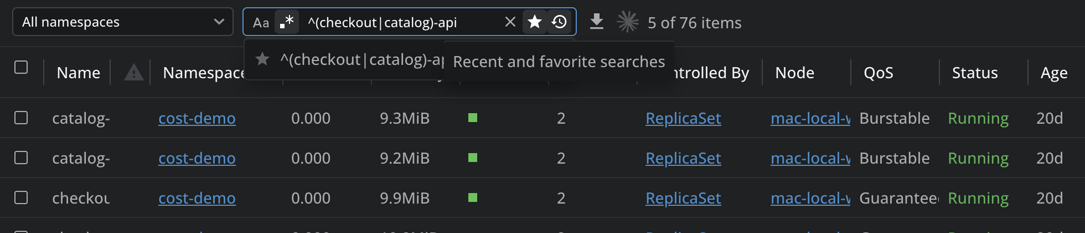
The list shows your favorite searches first, each with a star, then your recent searches, each with a clock. A case-sensitive search carries an Aa mark, and a regular expression search carries a .* mark. Lens reruns a search with the same settings it had.
Lens also suggests recent and favorite searches as you type. The suggestions contain the text you typed, in any case.
Your recent and favorite searches are shared by every resource list in every cluster. A search you ran in Pods in one cluster is available in Deployments in another.
Star a favorite search#
To star a search:
- Type or select the search in the search box.
- Click the star button, Add to favorites.
To remove a search from your favorites, put it in the search box and click the star button again, Remove from favorites.
Favorites and recent searches have separate limits, so starring a search keeps all your recent searches. At the favorites limit, the star button is disabled until you remove a favorite.
Remove a search#
To remove a search:
- Click the clock button beside the search box.
- Hover over a search and click its Remove button.
Lens removes the search from both your recent and favorite searches.
Set the limits#
Set how many searches Lens keeps in Preferences > Tables:
| Field | Description | Default |
|---|---|---|
| Recent Searches | How many recent searches Lens remembers | 10 |
| Favorite Searches | How many searches you can star as favorites | 10 |
Each field accepts a whole number from 1 to 50.