Start Lens in safe mode#
Safe mode starts Lens K8S IDE without loading any extension: it runs only what Lens ships with. Use it when an extension stops Lens from starting or from working. In safe mode you can still reach the extension, disable or uninstall it, and then leave safe mode.
There are two ways into safe mode:
- From the error page. When an extension crashes a view, Lens shows an error page with a Restart in Safe Mode button.
- From the command line. When Lens does not start at all, or the error page is out of reach, launch Lens with the
--safe-modeflag.
Restart in safe mode from the error page#
When a view fails, Lens replaces it with an error page that shows the error, with a Clear Error and a Restart in Safe Mode button. Hover Restart in Safe Mode to read what it does: safe mode disables extensions to recover from fatal errors, so that the misbehaving extension can be fixed, disabled, or uninstalled.
Click Restart in Safe Mode. Lens quits and starts again in safe mode. Continue with Check that Lens is in safe mode.
Start safe mode from the command line#
Lens runs as a single instance. If Lens is still running, launching it again only brings the running window to the front, and the flag is ignored. So first quit Lens completely:
- macOS: select Lens > Quit, or press Cmd+Q. Closing the window is not enough.
- Windows and Linux: select File > Quit, or press Alt+F4.
You can also quit from the Lens icon in the menu bar or notification area: click it, and select Quit App.
If Lens does not respond, end it from Activity Monitor on macOS, Task Manager on Windows, or with pkill -f lens-desktop on Linux.
Then launch Lens with the safe mode flag:
Open Terminal, and run:
open -a "Lens" --args --safe-mode
If Lens is installed under another name or folder, run its executable directly:
"/Applications/Lens.app/Contents/MacOS/Lens" --safe-mode
Open PowerShell, and run:
& "$env:LOCALAPPDATA\Programs\Lens\Lens.exe" --safe-mode
If you installed Lens for all users, it is under Program Files instead:
& "$env:ProgramFiles\Lens\Lens.exe" --safe-mode
If you chose another installation folder, right-click the Lens shortcut, select Properties, and use the path in Target.
Open a terminal. For a Lens installed from the .deb or .rpm package, run:
lens-desktop --safe-mode
For the AppImage, run it from the folder you keep it in:
./Lens-<VERSION>.<ARCH>.AppImage --safe-mode
Check that Lens is in safe mode#
Safe mode shows in several places:
- The Extensions row in the Navigator carries a red SAFE MODE badge. Hover it to read "Lens is running in safe mode, so extensions are not loaded."
- Every extension under Installed shows as Held back on its card, with "Held back by safe mode." as the reason.
- The top bar of every window has a red Leave Safe Mode button.
- Under Preferences > Extensions, Install from File System is turned off. Hover it to read "Lens is running in safe mode, so extensions cannot be installed."
- The Extension Marketplace says "Lens is running in safe mode. Public extensions can be browsed but not installed or updated."
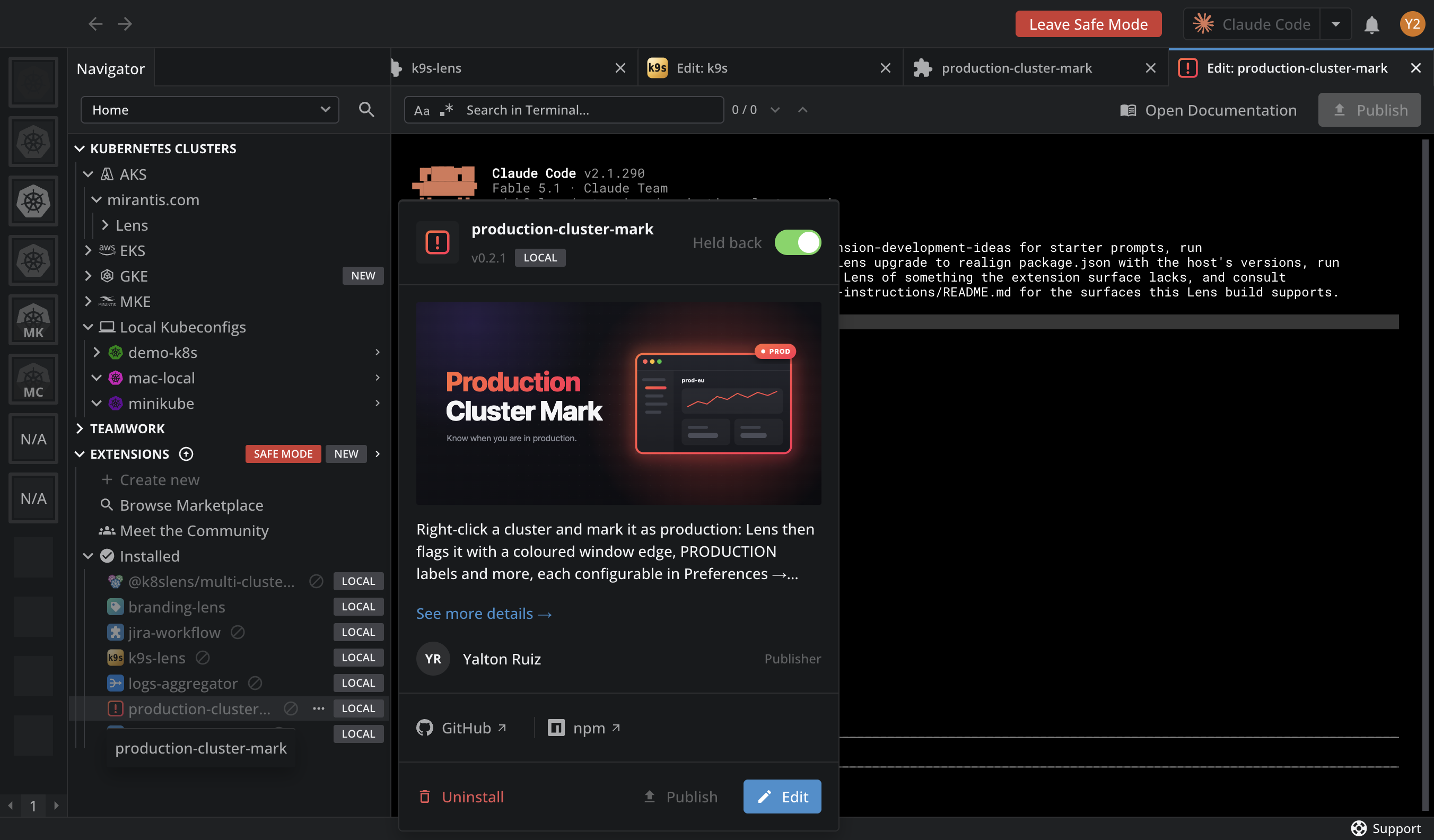
Disable or uninstall the extension#
Open Extensions > Installed in the Navigator. Your installed extensions are still listed, with their files and settings kept. Right-click the extension that broke Lens, or click its ... menu, and select Disable or Uninstall. See Remove an extension.
If you are not sure which extension it is, disable them all, and turn them back on one at a time after a normal start.
Leave safe mode#
Click Leave Safe Mode in the top bar. Lens restarts normally, and extensions load again, except the ones you disabled or uninstalled.
Safe mode lasts only for that run. If you quit Lens instead, the next start without the flag is a normal one.
What works in safe mode#
| In safe mode | |
|---|---|
| Extensions run | No. None is loaded. |
| Install, update, create, or clone extensions | No. |
| Browse the Extension Marketplace | Yes. |
| Disable or uninstall extensions | Yes, also the ones your organization installs for everyone. |
| Enable a local extension | No. |
| Enable a marketplace extension | Yes, but it stays off until the next normal start. |
| Your organization's extension policy | Not applied until you start normally. See Extension governance. |