Update an extension#
Lens premium subscription feature. See details on Lens Pricing.
Lens K8S IDE tracks updates for extensions installed from the marketplace and updates them in place, when you click Update or automatically. It offers only versions that fit your Lens build. An extension you develop yourself updates by rebuilding it.
See which extensions have updates#
Lens looks for updates at start, every hour, and whenever the installed extensions change. When it finds some, it shows them in several places:
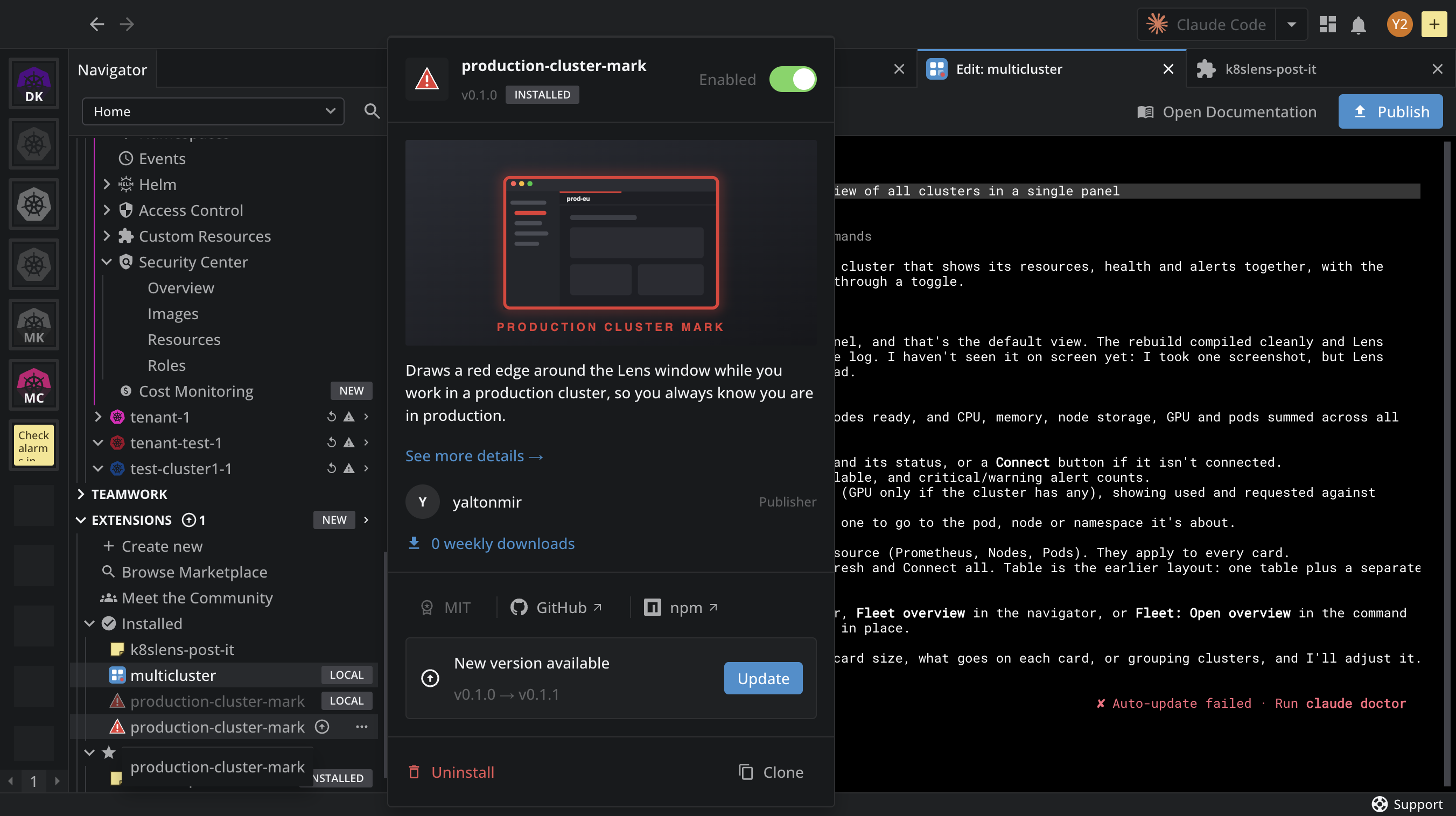
- The Navigator. A counter appears next to Extensions. Hover it to read how many extensions have an update, and click it to open Installed. When no counter shows, the same spot has a Check for updates button, which asks npm right away.
- The installed list. An arrow next to an extension's name under Installed marks a waiting update. Hover it to read the new version: "Update to
<VERSION>available". - The extension card. Hover the extension under Installed. Its card shows New version available with the old and new version, and an Update button.
- The marketplace. The Updates filter in Browse Marketplace shows every installed extension with a newer version.
- The details page. An extension's details page offers Update to followed by the new version, and its Changelog tab carries a NEW badge while the update waits.
Update a marketplace extension#
Start the update from any of these places:
- Click Update on the extension's card under Installed.
- Right-click the extension, or click its ... menu, and select Update.
- Click the arrow next to the extension's name.
- Click Update to on the extension's details page in the marketplace.
Lens asks you to confirm, and lists the changes in the new version. Confirm, and Lens fetches the new version from npm, replaces the installed one, and says so: "<NAME> was updated from <OLD-VERSION> to <NEW-VERSION>." A disabled extension is updated too, and stays off.
Turn on automatic updates#
By default, Lens only shows the updates it finds, and extensions change only when you click Update. To install updates as they are found:
- Navigate to Preferences > Extensions.
- Under Updates, turn on Auto Update Extensions.
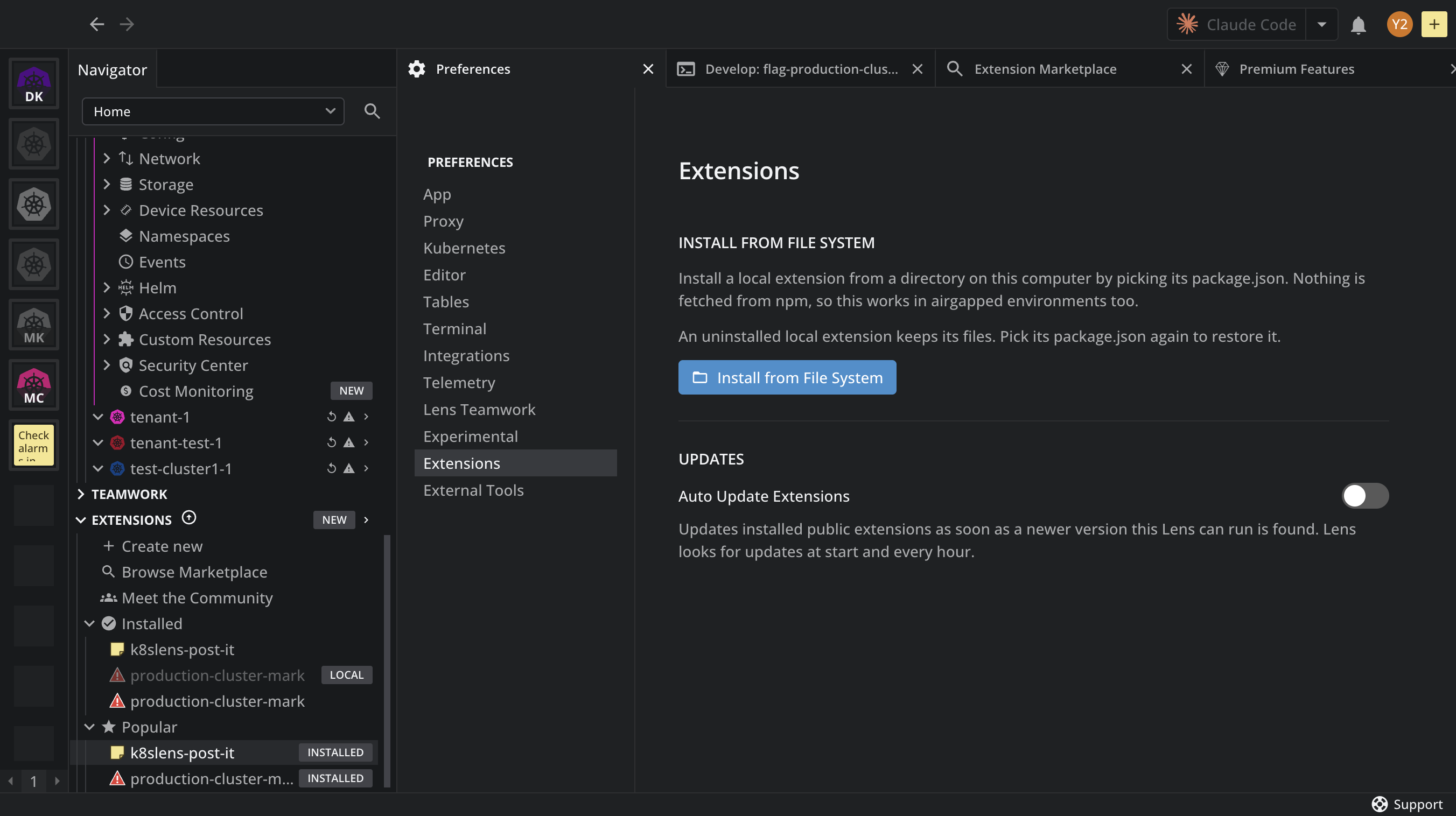
With the switch on, Lens installs a newer version as soon as it finds one your Lens build can run, and a notification names the version it replaced. Two cases behave differently:
- A version you picked yourself from an extension's Versions tab stays. Automatic updates leave it, and the update arrow shows faded. Click Update to replace your choice with the newest version.
- Extensions your organization pushes to you update automatically whatever the switch says. See Extension governance.
Updates and compatibility#
Lens offers and installs only the versions that fit your Lens build, following the compatibility matrix. This applies to manual and automatic updates alike:
- An update needs a newer Lens. When the newest version of an extension needs a newer Lens K8S IDE than yours, its card says so, for example "v2.0.0 needs a newer Lens", and keeps your current version. The update arrow shows faded. When a newer Lens is already downloaded, the card offers Update Lens. After Lens updates, the extension update becomes available.
- Your version stops fitting. After a Lens upgrade, the installed version may no longer fit while another does. The card then shows A version for this Lens with a Switch button.
- Your organization does not allow the update. When your organization manages extensions, the card says "
<VERSION>is out, but your organization does not allow it", and Update is turned off. See Extension governance.
Rebuild an extension in active development#
A local extension loads from its dist/index.js, not from your TypeScript sources, so changes reach the running extension only after a rebuild. To apply a change:
- Ask your AI tool to make the change and rebuild, or run
npm run buildyourself in the extension folder. If you closed the extension's tab, reopen it with Edit, as described in Continue editing an extension. - Wait for the build to finish. Lens watches
dist/index.jsandpackage.json, and loads the extension again as soon as either changes.
Note
After a Lens K8S IDE upgrade, your extension's package.json dependency versions may fall outside the ranges the new build accepts, and Lens refuses to load it with an error such as Declared range for "<DEPENDENCY>" (<RANGE>) is not compatible with Lens's <VERSION>. Run /lens-extension-development-sync-dependencies in your AI tool to realign them. See Keep your extension compatible.