Extension Marketplace#
Lens premium subscription feature. See details on Lens Pricing.
The Extension Marketplace lists every extension published to npm with the lens-extension keyword. It is in two places: inside Lens K8S IDE, under Extensions in the Navigator, and on the web at lenshq.io/extensions. Both read the same registry, so an extension published a few minutes ago is in both, with no release of Lens or of the website in between.
Browsing is open to everyone. Installing an extension needs a Plus, Pro, or Enterprise subscription plan, or an active trial. Anyone can publish an extension, so install only extensions from publishers you trust.
Browse the marketplace in Lens#
Open Extensions in the Navigator and select Browse Marketplace. The marketplace opens as a tab, with the extensions sorted by downloads, most downloaded first.
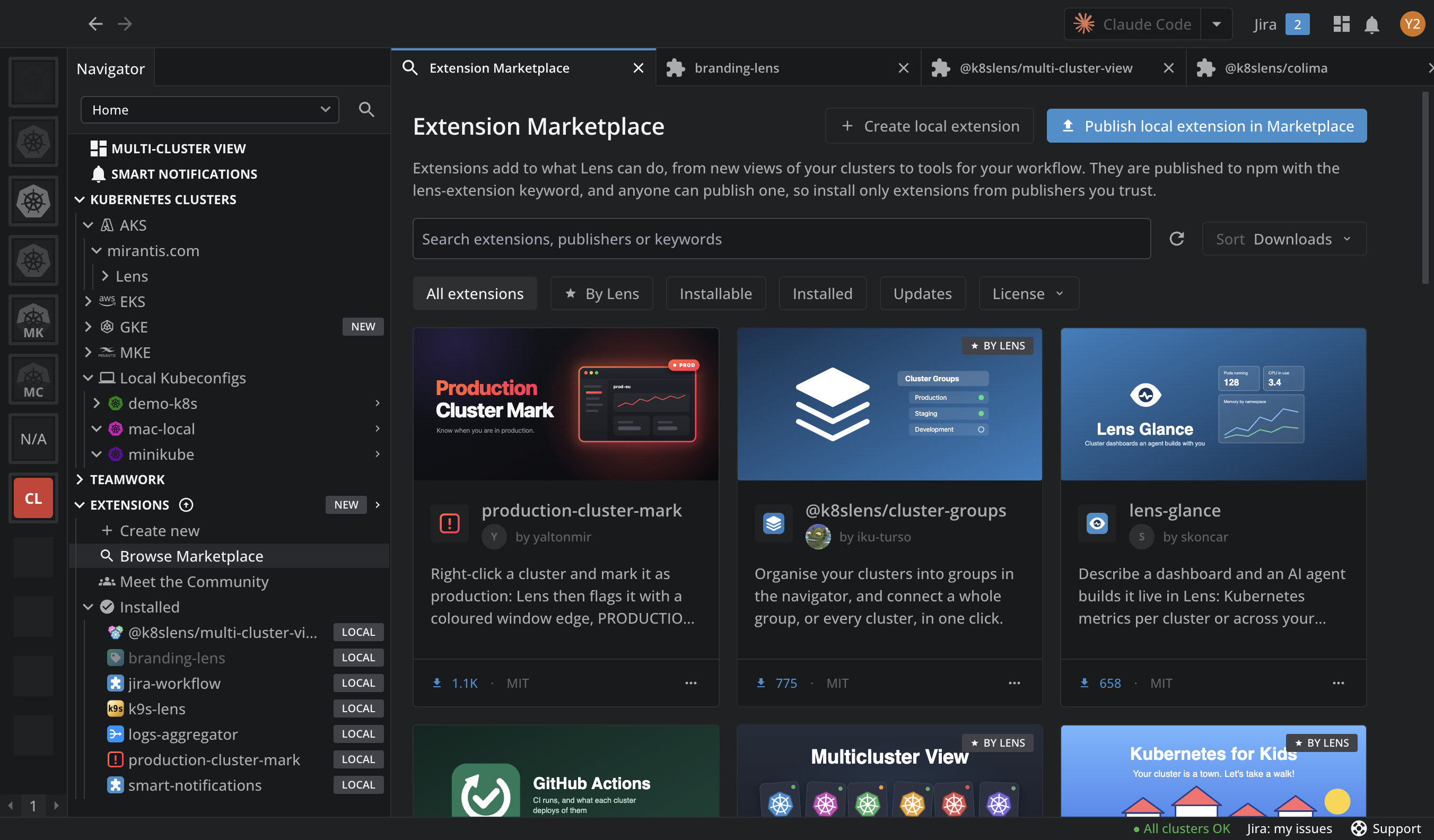
To find an extension:
- Search by extension name, publisher, or keyword. Every word you type must appear in one of them.
- Sort by Downloads, Name, or Date.
- Filter with the chips under the search field. By Lens keeps the extensions published by the Lens team, marked with a star. Installable keeps the ones you can install now. Installed keeps yours, and Updates the installed ones with a newer version. License keeps the licenses you pick. All extensions clears the filters and the search.
- Refresh, the button next to the sort order, asks npm for the list again.
Each card shows the extension's banner, name, publisher, description, downloads, and license. The downloads figure is the all-time total from npm. An extension you installed shows Installed on its card. Click the card to open the extension's page.
The card menu#
Right-click a card, or click its ... button, for the actions that do not need the extension's page:
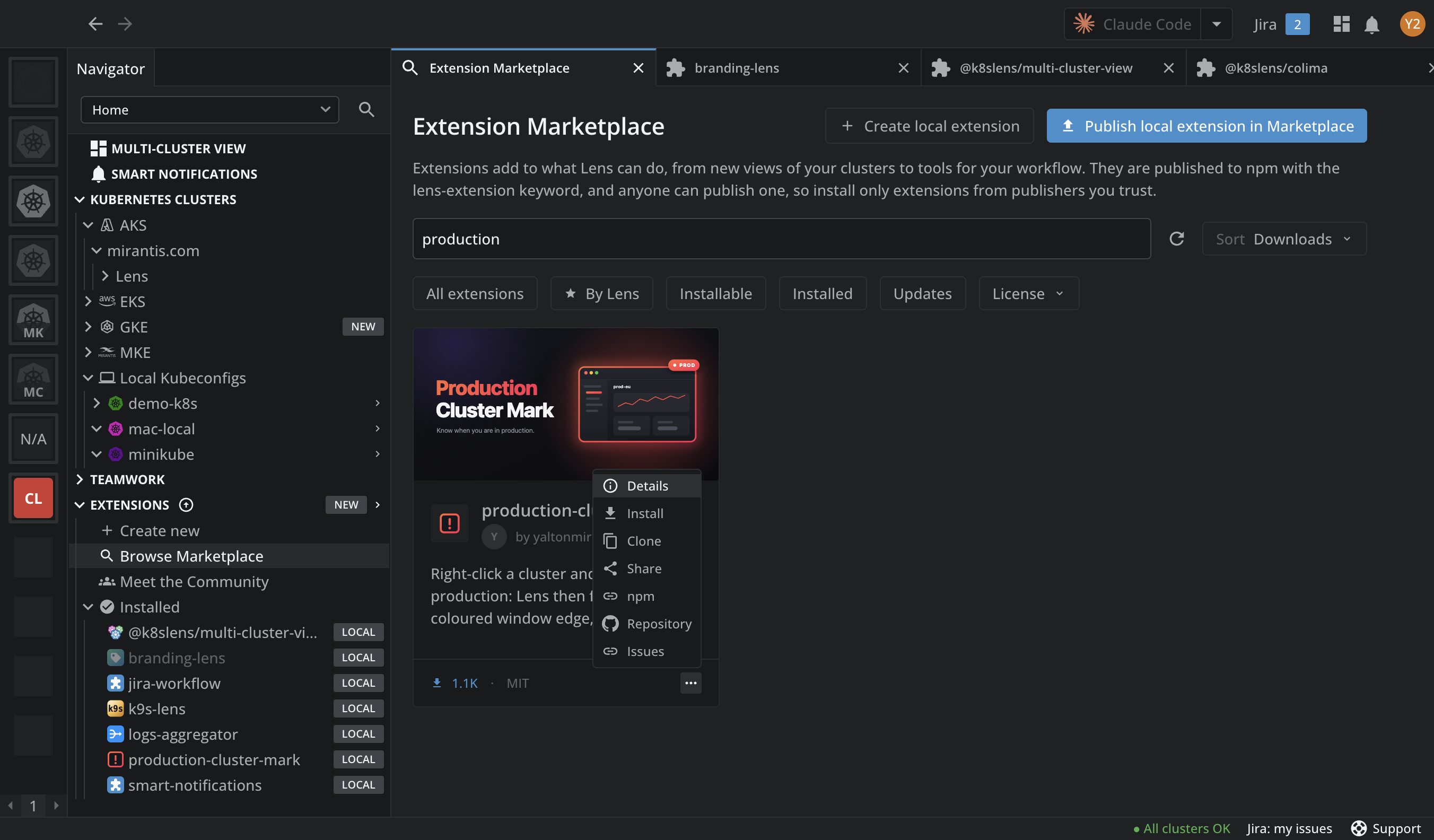
| Item | What it does |
|---|---|
| Details | Opens the extension's page. |
| Install | Installs the extension, after a confirmation. For an installed extension, the menu has Disable or Enable and Uninstall instead. |
| Clone | Copies the extension's repository into a local extension of your own. Only for an extension with a repository. See Clone an extension. |
| Share | Copies the link that opens the extension in another user's Lens. See Share an extension. |
| npm, Repository, Issues | Open the extension's pages in your browser. Repository and Issues appear when the extension names them. |
The header of the marketplace has two more buttons for your own extensions. Create local extension starts a new one with your AI tool. Publish local extension in Marketplace lists your local extensions with a Publish button each. See Create an extension and Publish an extension.
An extension's page#
Click a card, or select Details in its menu, to open the extension's page in a tab. Its header names the extension and its version. An extension you installed shows an INSTALLED badge, and the page describes the installed version. One you created or installed from your filesystem shows LOCAL instead.
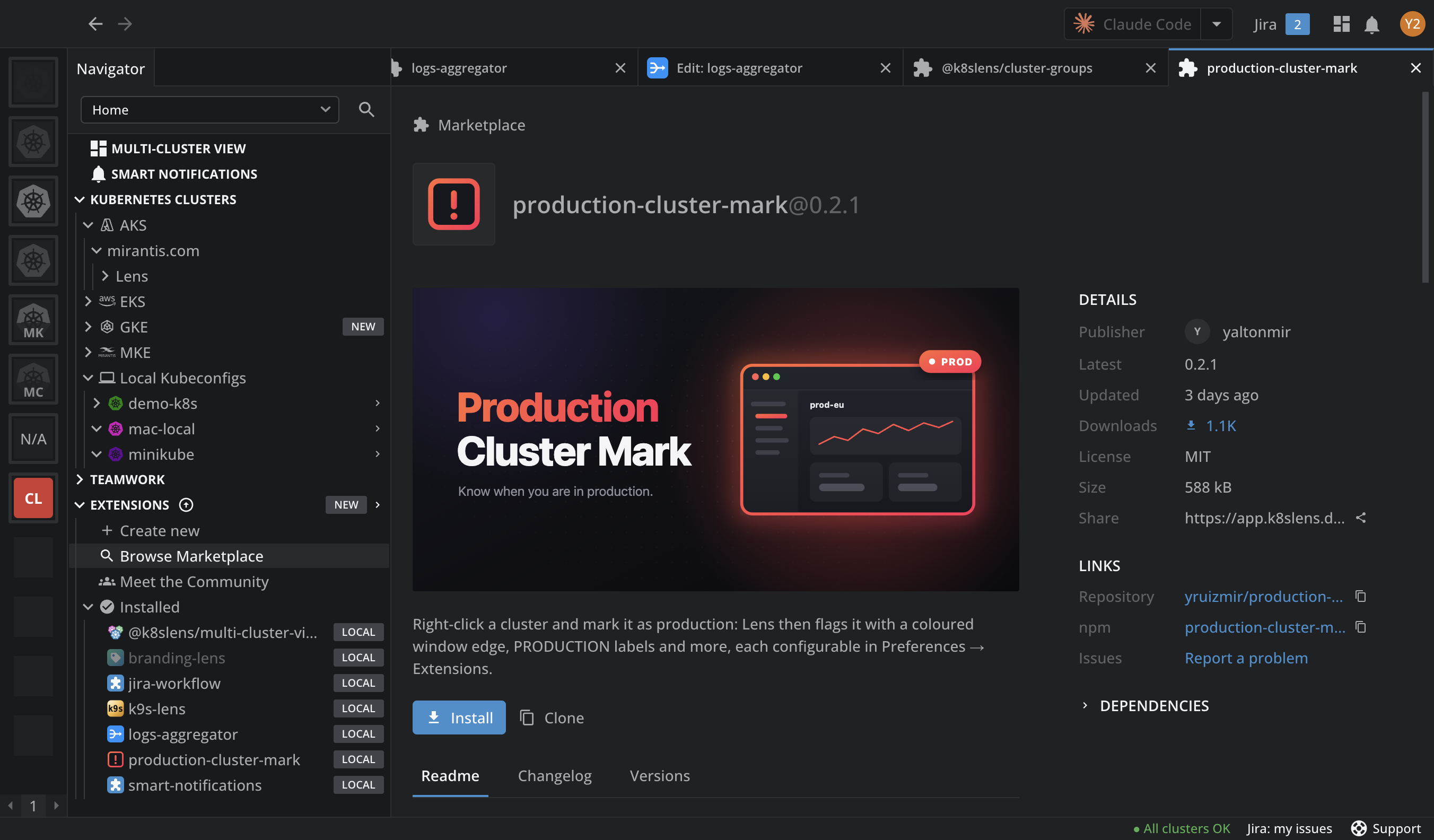
The page has:
- Install, or Uninstall and the Enabled switch for an installed extension, and Update to a newer version when one fits your Lens. Clone stands next to them for an extension with a repository.
- Details: the publisher, the latest version and when it was published, the downloads, the license, and the unpacked size. Share is the link that opens the extension in another user's Lens. Hover Downloads to see the last month as a graph.
- Links: Repository, npm, Homepage when it differs from the repository, and Issues, which opens where the publisher takes bug reports.
- Dependencies: the packages the extension depends on, each linked to its page on npm.
- Readme and Changelog, as the publisher wrote them. A tab with nothing under it is turned off, and its tooltip says why.
- Versions: every published version, newest first, with its downloads of the last seven days and its publish date. Each has an Install button to pick that version.
For what happens when you click Install, and how Lens picks the version that fits your build, see Install an extension and Compatibility matrix.
What your organization and safe mode change#
- If your organization has Lens Enterprise and manages extensions, an extension it does not allow is still listed, with Install turned off and the reason in its tooltip. An extension it installs for everyone shows "Installed by your organization." in place of Uninstall. See Extension governance.
- In safe mode, the marketplace says "Lens is running in safe mode. Public extensions can be browsed but not installed or updated." See Start Lens in safe mode.
- Without a subscription, every card shows a PREMIUM badge and Upgrade to install in place of Install.
Browse the marketplace on the web#
The same marketplace is at lenshq.io/extensions, so you can look through the extensions before you open Lens, and send a colleague a page they can read in the browser. The website reads the npm registry when the page loads, with the same search, the same downloads, and the same sort orders: Downloads, Name, and Latest release.
The web marketplace opens on the extensions published by the Lens team. Click All extensions to see everything, or pick a license to filter. Refresh asks npm again. Under the list, Meet the community takes you to the Lens Slack, where extension creators share what they make.
Each extension has its own page, at https://lenshq.io/extensions/?name=<NAME>, with the extension's npm name at the end, for example ?name=@k8slens/prom-king. The page shows the README, the changelog, and the versions, with the same Details and Links as in Lens, and Report a problem where the publisher takes bug reports.
To install an extension from its web page:
- Click Open in Lens. The browser hands the extension to Lens K8S IDE, which opens the extension's page with Install ready. If Lens is not installed, the link offers it for download.
- Click Install, and confirm.
View on npm opens the package on npmjs.com, and Share link copies the same link Share copies in Lens. Or find it inside Lens lists the steps by hand: open Extensions > Browse Marketplace, search for the extension, and install it there.