Add Google GKE clusters with One-Click Google Cloud Integration#
Lens premium subscription feature. See details on Lens Pricing.
This page contains instructions for One-Click Google Cloud Integration.
One-Click Google Cloud Integration connects Google Kubernetes Engine (GKE) clusters to Lens K8S IDE without installing or configuring the gcloud CLI. You sign in with your Google account and pick a Google Cloud project. Lens then auto-discovers the running clusters in that project and keeps the list up to date.
Prerequisites#
Before connecting to your GKE clusters, ensure that you have:
- A Plus, Pro, or Enterprise subscription plan. For details, see Lens Pricing .
- A Google account with access to at least one active Google Cloud project, and permission to view the GKE clusters in that project.
- Kubernetes RBAC permissions in each cluster for the resources you want to view or manage.
- Internet access.
Add a Google Cloud project#
To add a Google Cloud project:
-
In Kubernetes Clusters GKE, click Add Google Cloud Project . The Add Google Cloud Project modal opens and a browser tab with the Google sign-in page opens.
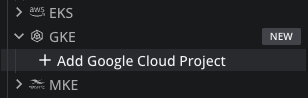
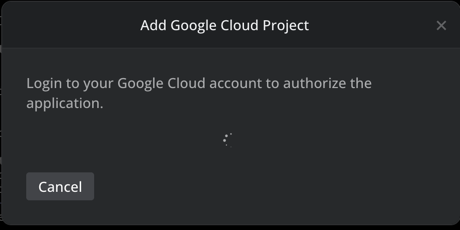
You can also start from Preferences Integrations Kubernetes Environments, by clicking Add Google Cloud Project in the Google GKE card, or from the Welcome page, by clicking Add Clusters from GKE....
-
In the browser, choose your Google account and allow the access that Lens requests.
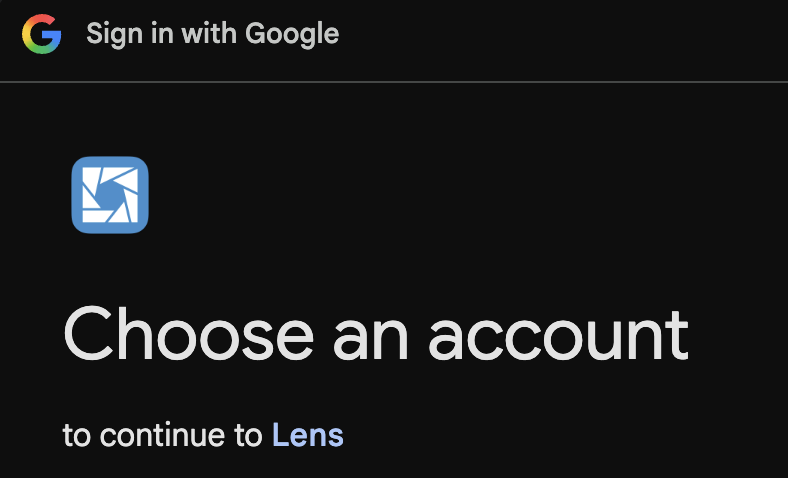
Lens requests your email address and access to your Google Cloud resources. Lens uses this access to list your projects and clusters, and to get the token that
kubectlpresents to each cluster's API server. This is the same access that Google's owngcloudauthentication plugin requests. -
When the browser shows Signed in to Google Cloud, close the tab and return to Lens K8S IDE.
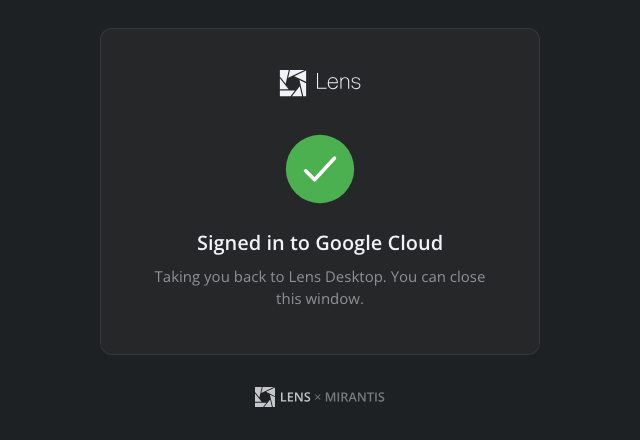
-
Lens lists the active Google Cloud projects that your account can access:
- If your account has access to one project, Lens adds it right away.
- If your account has access to several projects, the modal shows Select a Google Cloud project to add. Select a project from the list and click Add Project.
If the sign-in does not complete
- Complete the sign-in in the browser within 5 minutes. After that, Lens stops waiting.
- If the sign-in fails, the modal shows Login failed. Please try again. Click Try again to start a new sign-in, or Cancel to close the modal.
- If you cancel or deny access in the browser, the browser shows Sign-in was not completed. Close the tab and try again from Lens K8S IDE.
- If your account has no active Google Cloud projects, the modal shows No projects found for this account. Sign in with a different Google account, or ask your Google Cloud administrator for access to a project.
After completing these steps, the project and its clusters are listed in Kubernetes Clusters GKE. Lens auto-discovers the clusters in the Running state in every location of the project, both regions and zones. It checks the project every minute, so a cluster that is created for you appears on its own, and a deleted one disappears. Each cluster is named after the cluster and its location, for example prod-cluster (europe-west1). Click a cluster to connect to it.
Add more projects and Google accounts#
Repeat the steps in Add a Google Cloud project for each project. You can add projects from different Google accounts. Each project keeps the Google account it was added with, and each account keeps its own sign-in.
If you add a project that is already in Lens from a different Google account, Lens switches the project to the new account.
Rename a project#
You can rename a Google Cloud project from the Lens UI to give it a friendlier label. The rename is local to Lens.
To rename a project:
- In Kubernetes Clusters GKE, right-click the project.
- Select Rename.
- Type the new name and press Enter.
Each project needs a unique name. To see the project ID of a renamed project, hover over the project in the navigator.
Remove a project#
To remove a project:
-
Open the project's menu in one of these ways:
- In Kubernetes Clusters GKE, right-click the project.
- In Preferences Integrations, in the Google GKE card, click the menu in the project's row.
-
Select Remove.
-
In the confirmation dialog, click Remove.
Lens disconnects the project's clusters, then removes the project and the kubeconfigs it kept for its clusters. The project itself stays in Google Cloud. When you remove the last project of a Google account, Lens also removes that account's sign-in.
Sign in to Google again#
If your Google sign-in expires or is revoked, Lens can no longer list or connect to the project's clusters. The project in the navigator then shows Sign in required and a lock icon.
To sign in again:
- In Kubernetes Clusters GKE, click Sign in required or the lock icon next to the project.
- Complete the Google sign-in in the browser, with the same Google account that added the project.
After a successful sign-in, Lens shows Signed in to Google as followed by your email address, and lists the project's clusters again. Reconnect to any cluster that was disconnected.
If you sign in with a different account, Lens shows Failed to sign in to Google again: Signed in as <ACCOUNT>, but the project was added by <ORIGINAL-ACCOUNT>. Sign in with that account. Sign in again with the original account, or add the project again with the new account.
Manage GKE projects on the Integrations page#
The Google GKE card in Preferences Integrations Kubernetes Environments shows the connection status, your projects with the Google account each one uses, and the Add Google Cloud Project button. See Connect a Google Cloud project.
When the integration is not available#
If your subscription plan does not include the Google GKE integration, GKE in the navigator is marked as a premium feature. Click it to open the Premium Features page, where the Google GKE card offers Upgrade to unlock.
When the integration is not available, the Add Google Cloud Project button on the Integrations page is disabled. Hover over the button to see why:
| Message | Meaning |
|---|---|
| Upgrade to unlock | Your subscription plan does not include the Google GKE integration. See Lens Pricing . |
| This feature is disabled, please contact your Admin | An administrator of your organization disabled the feature. |
| Google GKE is not available in airgapped mode | Lens runs in airgapped mode. |
Private GKE clusters#
Lens supports private GKE clusters. Add the project as described above; Lens connects to private clusters through their DNS endpoint. If a cluster has no public IP endpoint but its DNS endpoint accepts external traffic, Lens points the kubeconfig at the DNS endpoint and authorizes with the same Google token. To enable the DNS endpoint for a cluster, see About network isolation in GKE in the Google Cloud documentation.
A private cluster without DNS endpoint access keeps its private IP address. To reach it, connect to the cluster's VPC network, for example through a VPN.