Add AWS EKS clusters with One-Click AWS Integration#
Lens premium subscription feature. See details on Lens Pricing.
This page contains instructions for One-Click AWS Integration.
One-Click AWS Integration allows you to connect Amazon Elastic Kubernetes Service (Amazon EKS or AWS EKS) clusters within Lens K8S IDE without installing and configuring AWS CLI.
This page covers the AWS EKS sign-in methods in detail. For the shared Integrations flow, and to connect Azure AKS or local kubeconfigs from the same page, see How to connect cloud environments.
To access your AWS EKS clusters, select one of the following options:
-
Sign in with AWS SSO
Connect to your AWS profile through a web-browser dialog menu.
-
Access Key Sign-in (IAM User)
Connect to your AWS profile with the user access keys.
-
Connect via IAM Role
Connect to your AWS profile with the unique identifier (ARN) of the IAM role.
While no AWS profile exists, the EKS entry under Kubernetes Clusters in the Navigator offers Add AWS Profile. It opens the Add AWS Profile dialog. Add AWS Account in Preferences > Integrations opens the same dialog.
Info
Although logging in your AWS profile might work without a VPN connection, connecting to an AWS EKS cluster itself may require one. This depends on the network policies of your organization. Contact your network administrators to determine whether a VPN connection is necessary.
Sign in with AWS SSO#
- In Preferences > Integrations > AWS EKS, click Add AWS Account and select Sign in with AWS SSO to access AWS using your company profile.
-
Paste your AWS SSO Start URL into the input field and click Next.
Tip
The AWS SSO Start URL has the following format:
Find AWS SSO Start URL in your AWS access portal, or contact an AWS administrator of your organization account.https://<sso-portal>.awsapps.com/start -
In the AWS SSO Authorization step of the Add AWS Profile dialog, memorize the authorization code and click Open in browser. A browser tab opens. If you are not signed in to AWS, it shows a sign-in form.
- In the browser tab, verify that the displayed code matches the one from the previous step, and click Confirm and continue. Complete the remaining steps and return to Lens K8S IDE.
- In the Add AWS Profile dialog, under Choose AWS Account, select the account.
- Optional. If there are multiple IAM roles in your profile, select one that you are going to use.
After completing these steps, the AWS profile appears in Navigator with the clock icon displaying the validity period of current credentials. After passing the expiration time, the lock icon appears upon the profile. You can update your credentials by clicking the icon and repeating the steps above.
In the video below, you can watch the integration process:
Access Key Sign-in (IAM User)#
To connect using access keys from your AWS profile:
- In Preferences > Integrations > AWS EKS, click Add AWS Account and choose Access Key Sign-in (IAM User).
-
In the Add AWS Profile dialog, enter the user access keys:
Access key Comment AWS Access Key ID Required. Copy from <aws-profile-name> Access keys. AWS Secret Access Key Required. Copy from <aws-profile-name> Access keys. AWS Session Token Optional. If necessary, copy from <aws-profile-name> Access keys. Click Next to finish the process.
As a result, AWS EKS clusters from the profile appear at Kubernetes Clusters EKS.
Watch the video with the integration process below:
Connect via IAM Role#
Some cases, in which you may need using an AWS IAM role:
-
Enterprise environment features
You might have access to an AWS profile, but an AWS IAM role might be required to access clusters within the profile.
-
Multiple profiles setup
Clusters you need, can possibly be in sub-profiles, and to access the latter and IAM role is required.
-
Level of user permissions
Your personal permissions in an AWS profile might be insufficient to access clusters.
To connect using AWS IAM role:
- In Preferences > Integrations > AWS EKS, click Add AWS Account and choose Connect via IAM Role.
-
In the Add AWS Profile dialog:
- Select an AWS profile
- Enter the role ARN (Amazon Resource Name)
- Optional, enter the session name
- Optional, enter the MFA device ARN if the role requires multi-factor authentication (MFA), for example
arn:aws:iam::123456789012:mfa/my-device - If you entered an MFA device ARN, enter the 6-digit code from the device in the MFA code field
Click Next to finish the process
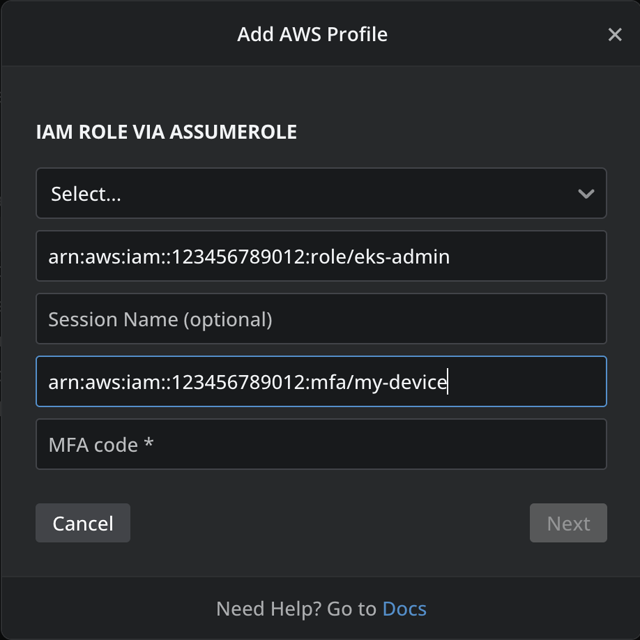
As a result, AWS EKS clusters from the profile appear at Kubernetes Clusters EKS.
Roles that require MFA#
Lens supports AWS profiles that assume a role with MFA. Such a profile sets mfa_serial together with role_arn and source_profile in your AWS config file. When you add a role with an MFA device ARN in the dialog above, Lens writes mfa_serial to the new profile for you.
Lens assumes the role with the credentials of source_profile and your MFA code, and keeps only the resulting temporary credentials until they expire.
When the temporary credentials expire, the profile shows MFA required in the navigator. To connect again:
- Click MFA required on the profile.
- In the MFA code required dialog, enter the 6-digit code from your MFA device.
- Click Submit.
If AWS rejects the code, the dialog stays open with a message. Wait for your authenticator to show a new code, then try again.
See also
-
Overview of Amazon Elastic Kubernetes Service.
-
Getting started with the AWS CLI
First steps with the AWS CLI.
-
Configuring IAM Identity Center authentication with the AWS CLI
Configure the AWS CLI to retrieve credentials for AWS CLI commands.
-
Configuration and credential file settings
Organize and store credentials in config files.
-
Why can't I connect to my Amazon EKS cluster?
Create a kubeconfig file for an Amazon EKS cluster.
-
A quick path to Amazon EKS single sign-on using AWS SSO
Configure single sign-on for Amazon EKS.