Add Azure AKS clusters with One-Click Azure Integration#
Lens premium subscription feature. See details on Lens Pricing.
This page contains instructions for One-Click Azure Integration.
One-Click Azure Integration connects Microsoft Azure Kubernetes Service (AKS) clusters to Lens K8S IDE without installing or configuring the Azure CLI.
Prerequisites#
Before connecting to your AKS cluster, ensure that you have:
- A Plus, Pro, or Enterprise subscription plan. For details, see Lens Pricing .
- An Azure account with sufficient subscription and permissions for the target clusters.
Add an Azure organization#
-
In Kubernetes Clusters AKS, click Add Azure Organization . The Add Azure Integration modal opens.
-
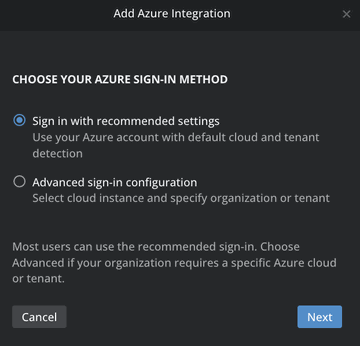
Under CHOOSE YOUR AZURE SIGN-IN METHOD, select one of the two options:
- Sign in with recommended settings: use your Azure account with default cloud and tenant detection. Choose this option for Azure Public.
- Advanced sign-in configuration: select cloud instance and specify organization or tenant. Choose this option for sovereign clouds or service-principal access.
Tip
Most users can use the recommended sign-in. Choose Advanced if your organization requires a specific Azure cloud or tenant.
-
Click Next to continue with the selected flow.
Recommended sign-in#
-
Choose Sign in with recommended settings and click Next.
-
In Add Azure Organization, select Sign in with Microsoft Entra SSO and click Next.
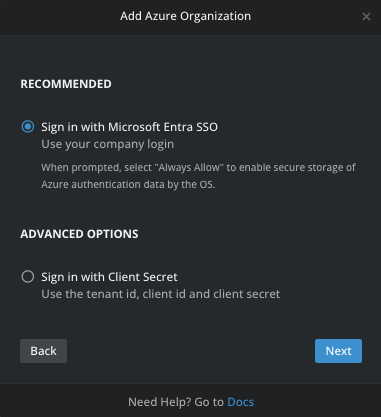
On macOS, the modal also tells you to select Always Allow when your operating system prompts for the credential store.
-
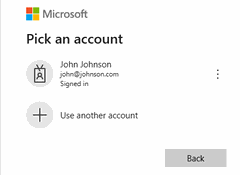
A browser tab with the Microsoft Azure login page opens.
-
Sign in to your Azure organization. After a successful sign-in, a tab opens where the following message is displayed:
Auth code was successfully acquired. You can close this window now.Close the tab and return to Lens K8S IDE.
Advanced sign-in#
Use this flow when you need to choose the Azure cloud or target a specific tenant. Both flows reach the same Add Azure Organization step, so Sign in with Client Secret is available from the recommended flow as well.
-
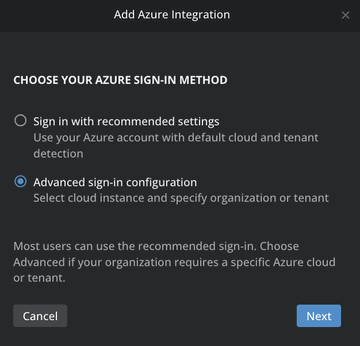
In the Add Azure Integration modal, choose Advanced sign-in configuration and click Next.
-
Under Where is your Azure environment?, select the Azure cloud:
- Azure Public (Recommended): the standard Azure cloud used by most organizations.
- Azure Government: the US government cloud. Lens signs in at
login.microsoftonline.us. - Azure China: the cloud operated by 21Vianet. Lens signs in at
login.chinacloudapi.cn. - Custom Azure cloud: any other Azure cloud. Enter the base Azure sign-in URL in the field that appears. The value must use HTTPS and must not include a tenant or path segment.
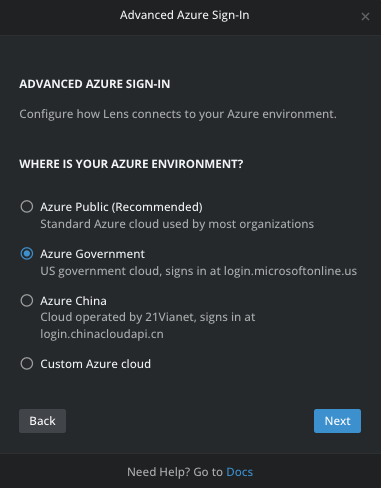
For details, see Azure Government and Azure China.
-
In Add Azure Organization, choose how to sign in:
- Sign in with Microsoft Entra SSO: completes the same browser-based login as the recommended flow, scoped to your selected cloud.
- Sign in with Client Secret: uses a service-principal credential. Fill in:
- Tenant ID
- Client ID
- Client Secret
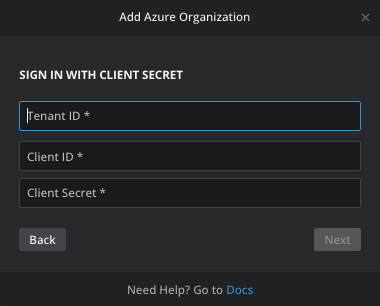
All three fields are required. Next stays disabled until each one is filled.
Storing credentials
When connecting to Azure, your operating system may display a prompt to create or unlock a secure credential store (for example, Keyring on Linux or Keychain on macOS).
This is an expected operating system–level security mechanism. It allows the system to securely store Azure tokens or certificates in encrypted storage instead of plain text.
The prompt is generated by the operating system, not by this application or by Azure.
We recommend selecting Allow always, or a similar option, to enable secure authentication and avoid repeated sign-in prompts.
After completing these steps, the available Azure directories and subscriptions with clusters are listed in Kubernetes Clusters AKS, grouped by resource group.
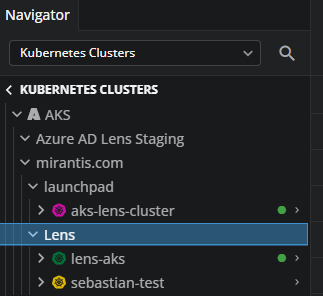
Azure Government and Azure China#
Lens K8S IDE connects to AKS clusters in Microsoft's national clouds. Each of these clouds has its own sign-in endpoint, so add the organization through the advanced flow instead of the recommended one.
-
In Kubernetes Clusters AKS, click Add Azure Organization .
-
Select Advanced sign-in configuration and click Next.
-
Under Where is your Azure environment?, select your cloud:
Azure cloud Sign-in endpoint Azure Government login.microsoftonline.usAzure China, operated by 21Vianet login.chinacloudapi.cnLens uses the endpoint of the selected cloud, so you do not need to enter a URL. Use Custom Azure cloud only for a cloud that is not in the list. See the screenshot in Advanced sign-in.
-
Choose Sign in with Microsoft Entra SSO or Sign in with Client Secret, and complete the sign-in.
After you sign in, Lens lists the directories and subscriptions of that cloud in Kubernetes Clusters AKS, grouped by resource group, the same way as for Azure Public.
Note
You can add organizations from different Azure clouds, and from different Azure accounts, at the same time. Each organization keeps its own sign-in, so adding one does not stop the others from listing their clusters.
Rename a resource group#
You can rename an Azure resource group from the Lens UI to give it a friendlier label. The rename is local to Lens and does not change the resource group in Azure.
- In Kubernetes Clusters AKS, locate the resource group you want to rename.
- Open the resource group's context menu and choose the rename option.
- Enter a new name and confirm.
Private AKS clusters#
Lens supports private AKS clusters. Add the organization as described above; private clusters appear in the AKS list alongside public clusters, and Lens uses the Azure-managed network path to connect.