Publish an extension#
Lens premium subscription feature. See details on Lens Pricing.
A local extension works in your own Lens as soon as you create it. Publish it to npm so that others can install it from the Extension Marketplace.
Publishing to npm is the minimum it takes to share an extension. Lens K8S IDE does it for you from a dialog: it signs you in to npm, builds the extension, and publishes it. To also let others read the source, clone the extension, and send you changes, share the source on Git as well.
Requirements#
Lens refuses to publish until all of these are met:
- npm 11.6.2 or later on your machine. The Publish button shows a warning icon when npm is missing. Click it to see how to get npm. An older npm hides part of the links Lens opens in your browser to sign in, so Lens refuses to publish with it. Run
npm install -g npm@latestto update. - An npm account with two-factor authentication, which npm requires for publishing. If you do not have an account, create one at npmjs.com when Lens opens the browser to sign in.
- A free package name. If the name is taken, change it in
package.json, or use a scoped one such as@your-npm-user/name. - A new version. A version that is on npm already cannot be published again. The Publish button is turned off until you raise the version in
package.json. - An extension that builds. Lens runs
npm run buildbefore it publishes. - Permission from your organization, if it manages extensions. See Extension governance.
Keep the lens-extension keyword in package.json. Lens publishes without it, but the Extension Marketplace lists extensions by that keyword, so without it nobody finds the extension there. Every created extension starts with it.
npm lists the email address of your npm account in the public data of every package you publish. Sign up for npm with an address you are comfortable sharing.
Publish from Lens#
Publish an extension from either of two places:
- The Edit tab. Click Publish in the top right corner of the extension's Edit tab, next to Open Documentation.
- The extension card. In the Navigator, under Extensions > Installed, hover the extension and click Publish on its card. The extension's right-click and ... menus have the same Publish item.
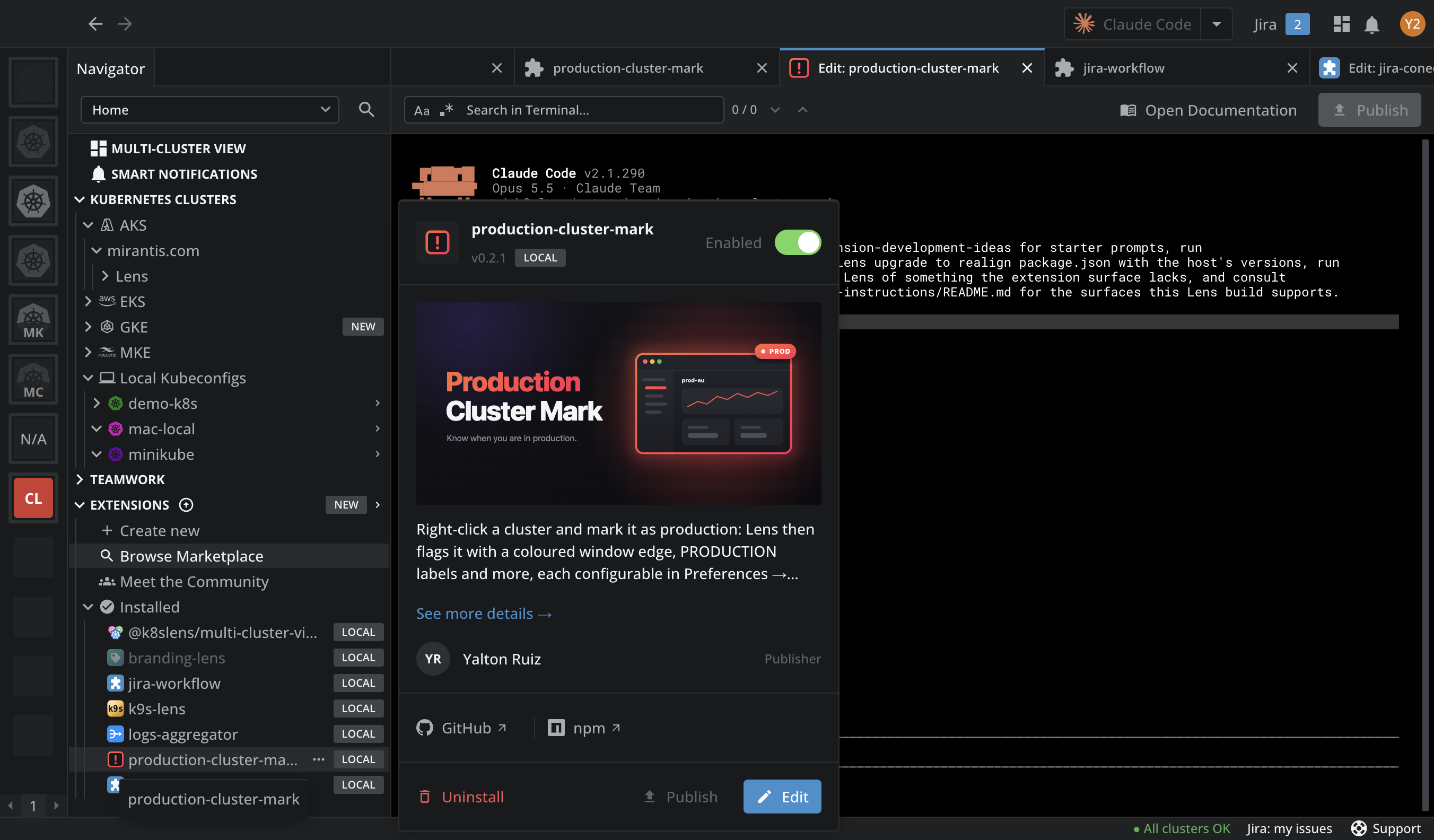
You can also ask your AI tool in the Edit tab to publish the extension. It runs /lens-extension-development-publish, checks the extension is ready, asks you for anything only you can decide, such as the license, and then opens the same dialog in Lens.
Confirm#
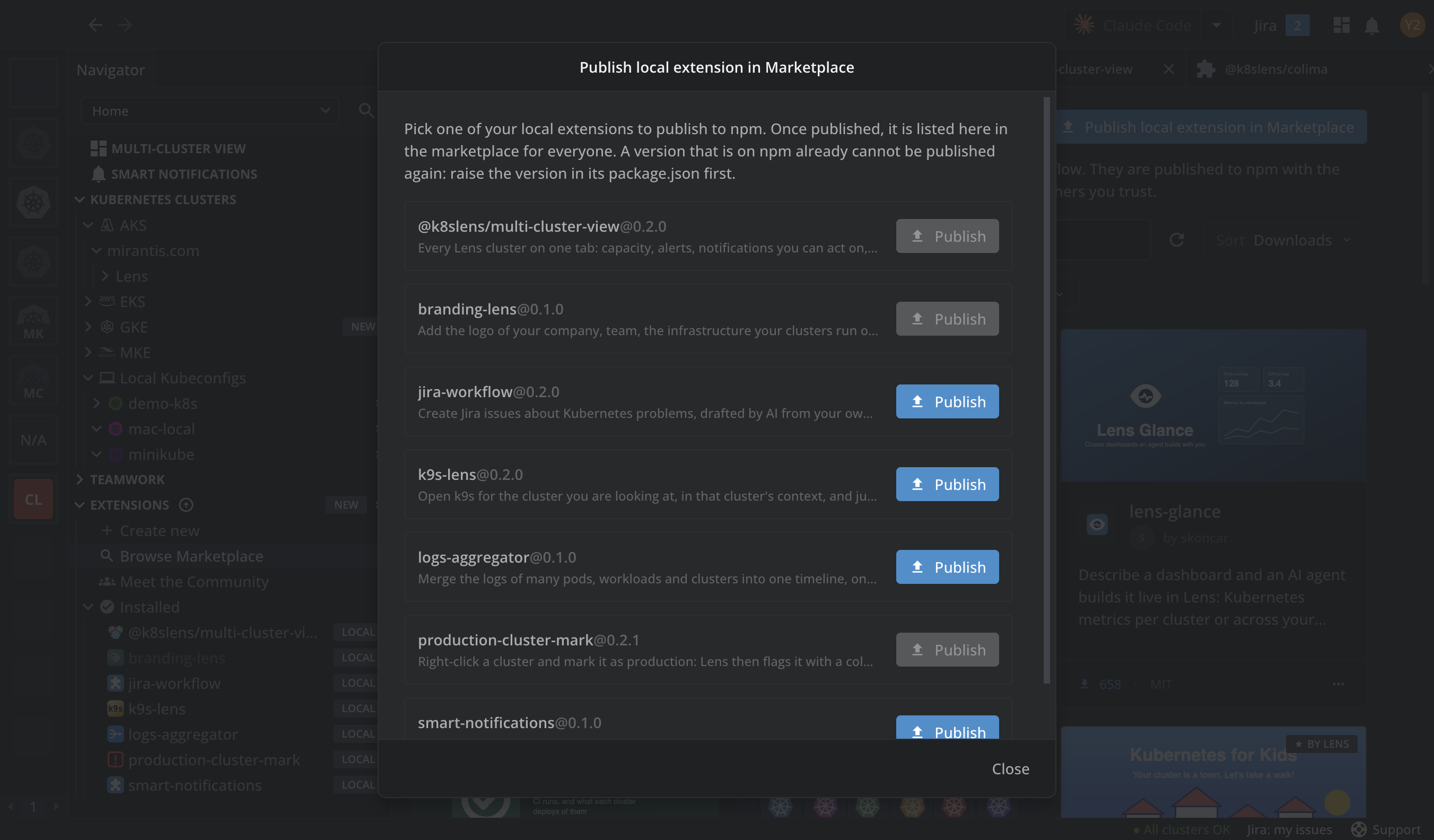
Lens asks you to confirm, in the Publish dialog. The dialog names the npm account Lens publishes as, with a sign out link to switch accounts, and lists what Lens will do:
- Sign you in to npm in your browser, if you are not signed in yet. Lens keeps this sign-in to itself, apart from your own npm setup.
- Check that your npm account has two-factor authentication.
- Build the extension with
npm run build. - Publish it to the public npm registry.
The dialog also warns about anything missing from the extension's package.json: a license, an author, a repository, the lens-extension keyword, an icon, a banner, or a place to report problems. The warnings do not stop the publish. Each has an Edit the extension to fix this button, which opens the extension in your AI tool. For what the license and repository give other users, see Share the source on Git.
Click Publish.
Sign in and approve#
While it publishes, Lens shows each step in the Publishing dialog and waits for you where npm needs you:
- Sign in to npm in your browser, the first time. Lens remembers the sign-in for the next publish.
- Approve the publish in your browser, if npm asks. If npm asks for a code from your authenticator app instead, Lens shows the Enter your one-time password dialog. Codes change every 30 seconds, so enter the one your app shows now.
If the browser did not open, click Open the page again in the dialog. Cancel stops the publish at any step.
Published#
When the publish succeeds, the Published dialog confirms the name and version, with a link to the package on npm.
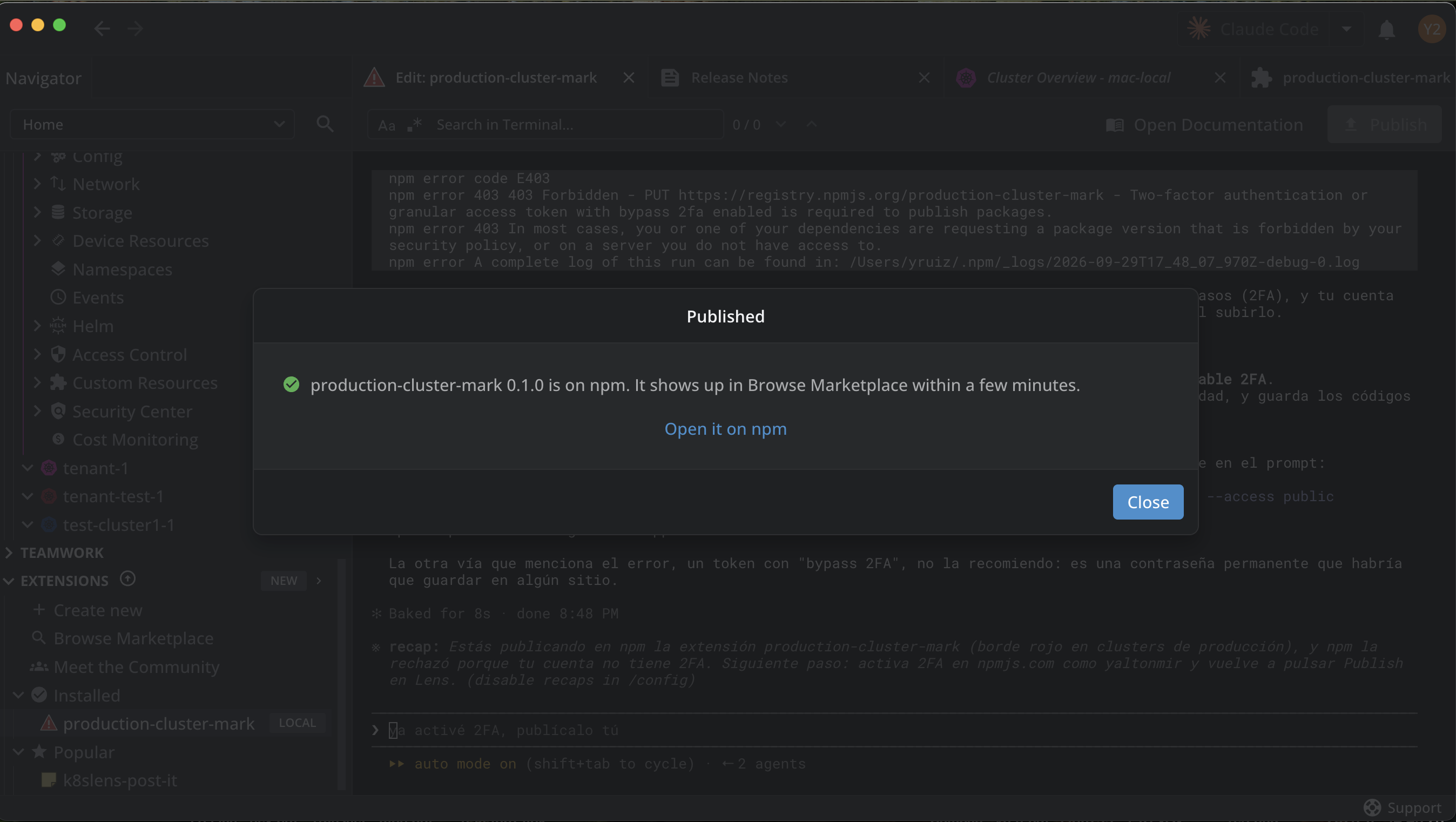
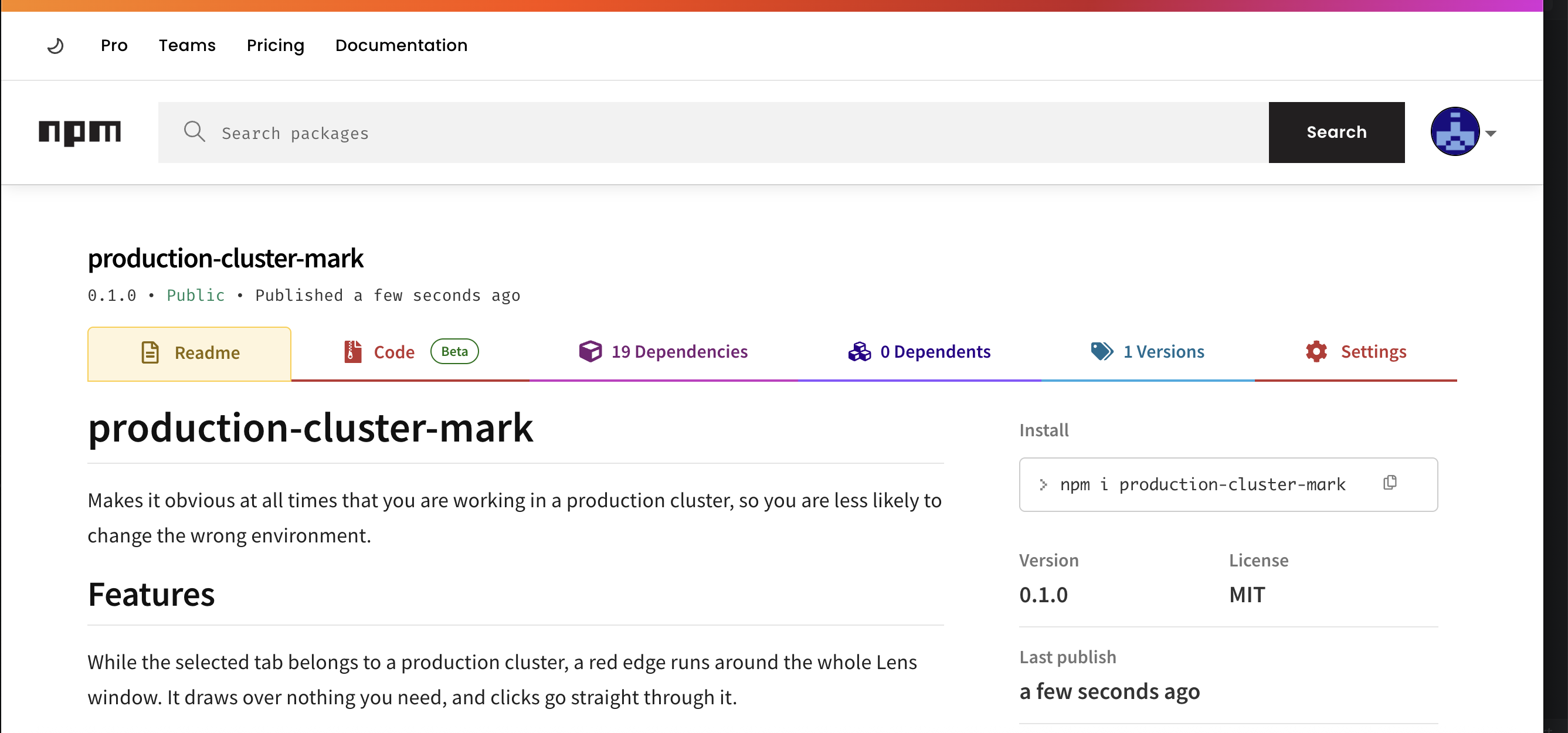
Open the package on npm to see its public page. It shows the extension's README.md as its description, so keep the README clear about what the extension does before you publish.
To see every published Lens extension on npm, yours included, search npmjs.com for keywords:lens-extension.
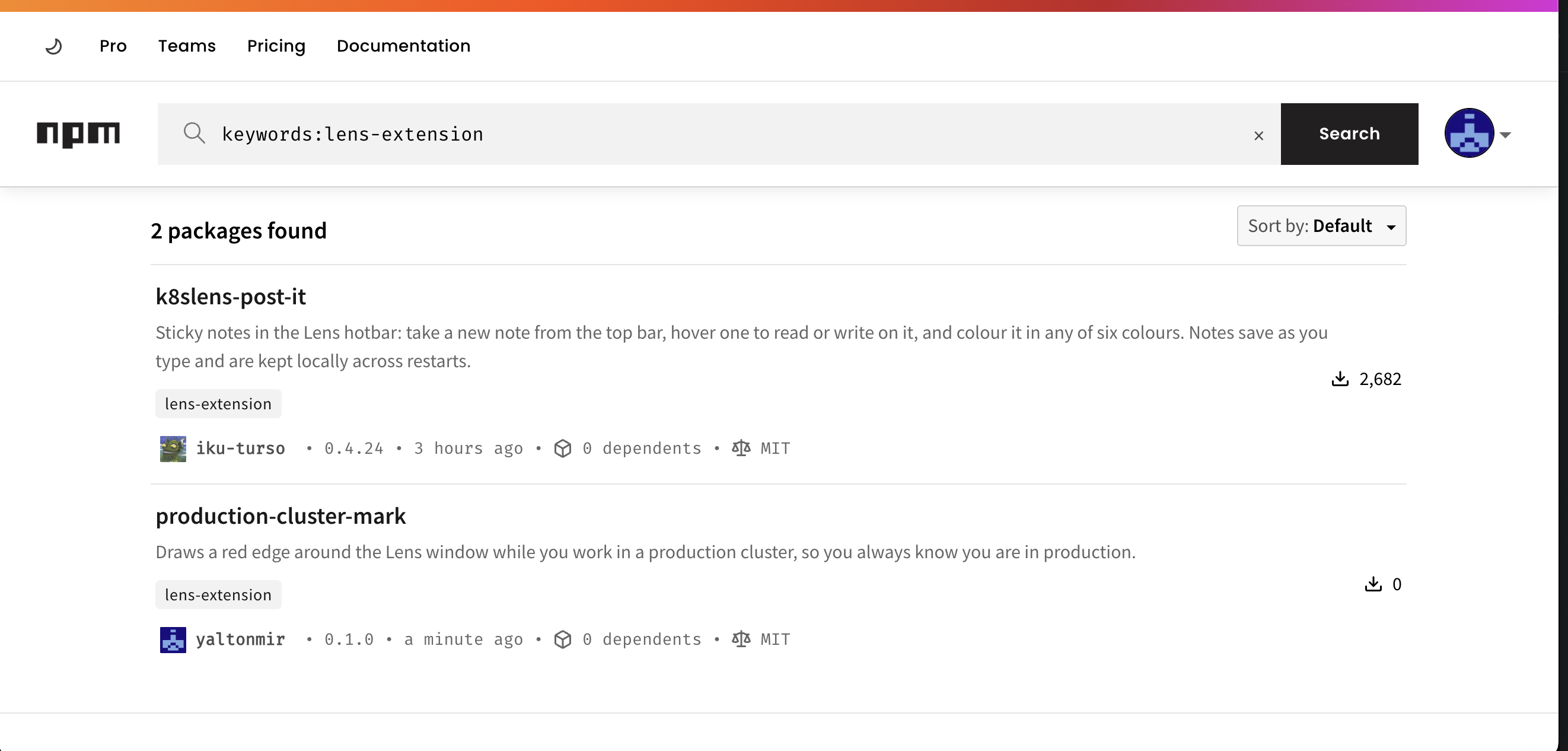
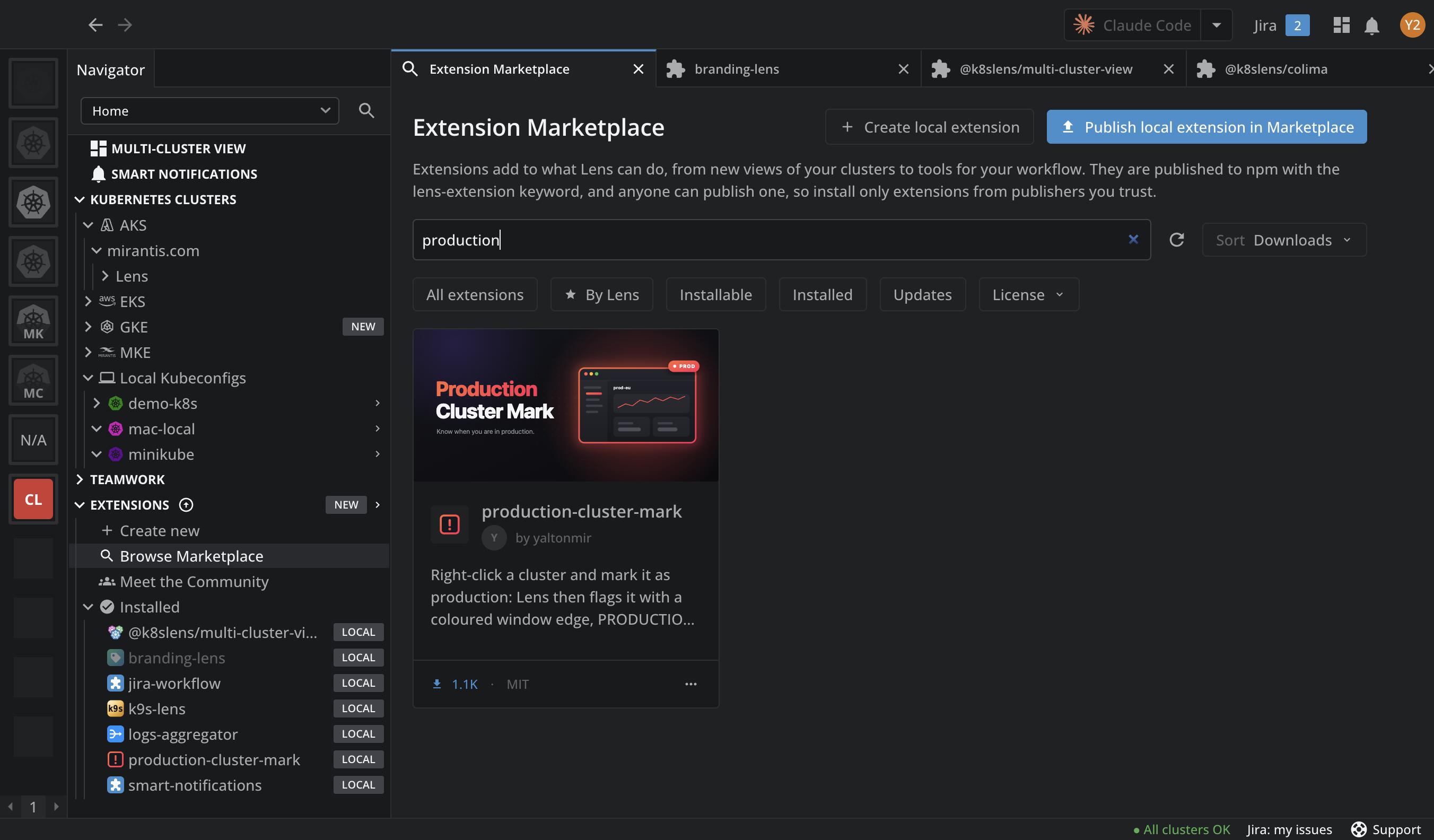
The extension then appears in Browse Marketplace for everyone, with your npm user as its publisher. To hand it to someone directly, copy its link with Share. See Share an extension.
Note
The extension is on npm as soon as the Published dialog appears. It usually shows up in Browse Marketplace within a few minutes, but it can take more than 15. Check back later: the publish already succeeded.
When publishing fails#
The Publishing failed dialog says what went wrong, with a Try again button:
| Message | What to do |
|---|---|
| Your npm account needs two-factor authentication to publish. | Turn it on at npmjs.com with the Turn on two-factor authentication link, then click Try again. |
| This version is already published. | Raise the version in package.json, and publish again. |
| The package name is taken, or too close to one that is. | Choose another name in package.json, or a scoped one such as @your-npm-user/name. |
| The extension did not build. | Ask your AI tool in the Edit tab to fix the build, then publish again. |
| Your npm is too old to publish from Lens. | Run npm install -g npm@latest, then click Try again. |
| npm needs you to sign in. | Publish again, and sign in in the browser when asked. |
Publish a new version#
To publish an update, raise the version in the extension's package.json, or ask your AI tool in the Edit tab to do it, and publish again. Users who installed the extension from the marketplace see the update. See Update an extension.
Declare honest dependency ranges
Lens installs the newest published version whose dependency ranges fit the user's Lens build, and skips the versions that do not fit. A range that claims more than the extension supports produces an extension that installs and then fails to load. See Compatibility matrix.
Publish from the command line#
The manual equivalent works too. Keep the lens-extension keyword in package.json, which is what lists the extension in the marketplace. From the extension's folder:
npm login
npm version <major|minor|patch>
npm publish --access public