Remove an extension#
Lens premium subscription feature. See details on Lens Pricing.
Uninstall an extension you no longer need, disable it to keep it installed but inactive, or start Lens in safe mode when a broken extension gets in the way.
Uninstall an extension#
To uninstall an extension:
- Open Extensions > Installed in the Navigator.
-
Right-click the extension, or hover it and click the ... menu, and select Uninstall. Its card, which opens beside it, has the same Uninstall button.
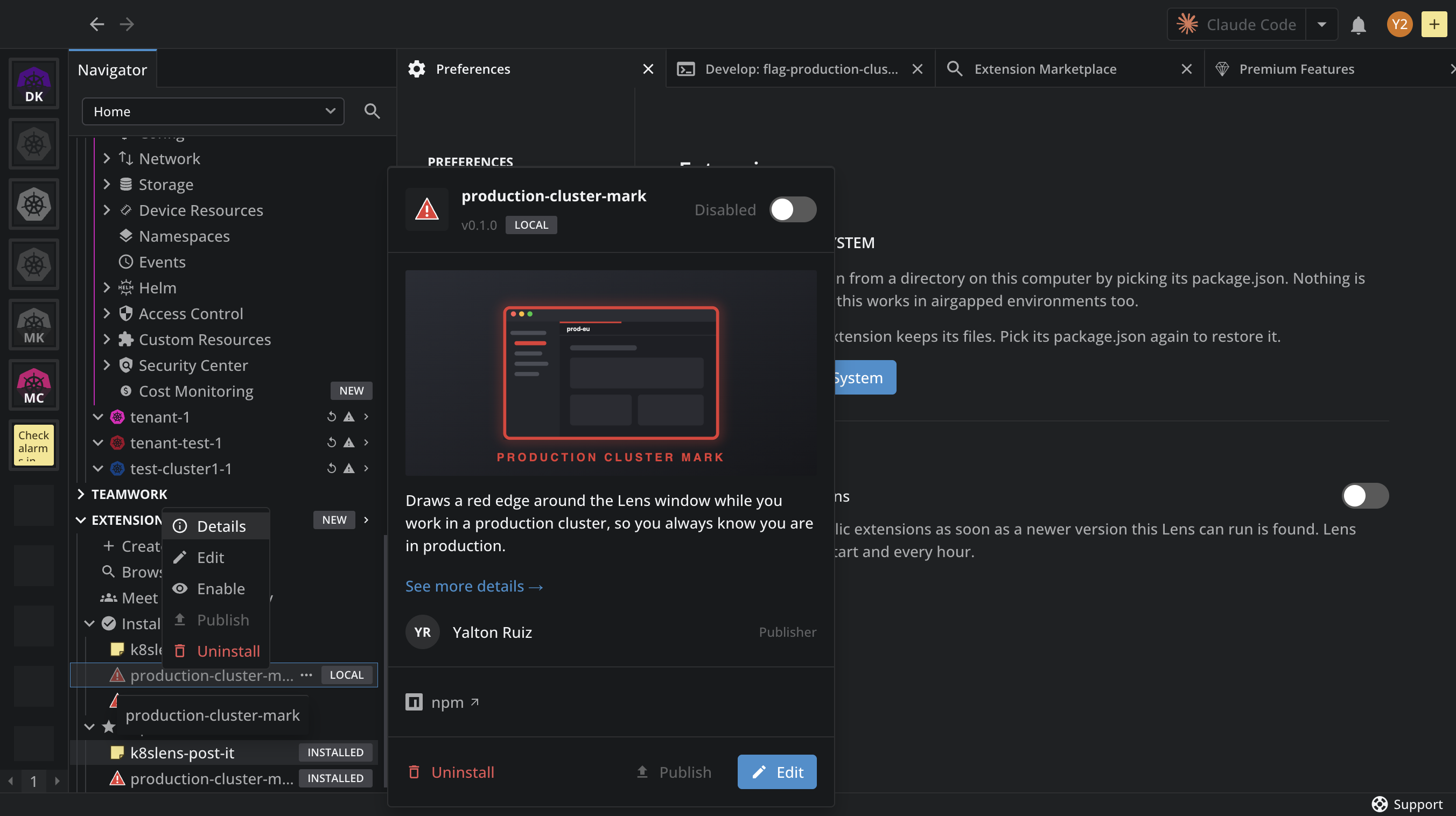
A local extension's menu has Details, Edit, Disable or Enable, Publish, and Uninstall, plus the Repository and Issues pages when its
package.jsonnames them. An extension installed from the marketplace has Details, Disable or Enable, Share, the npm and Repository pages, and Uninstall. It adds Update when a newer version fits, Clone when it has a repository, and Issues when the repository is on GitHub or GitLab. -
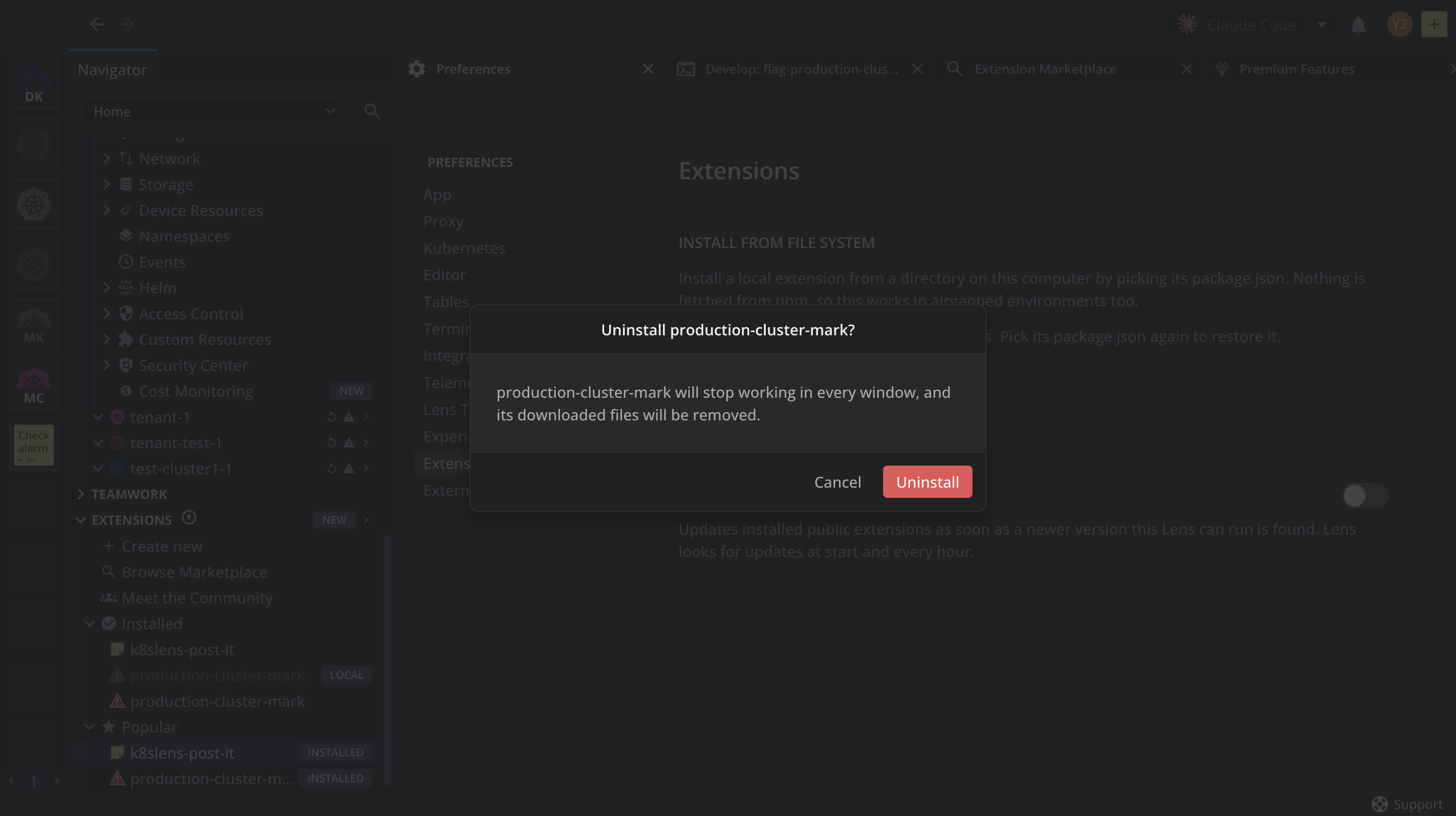
Confirm.
The extension stops working in every window and disappears from the list. What happens to its files depends on where it came from:
-
A marketplace extension's downloaded files are removed.
-
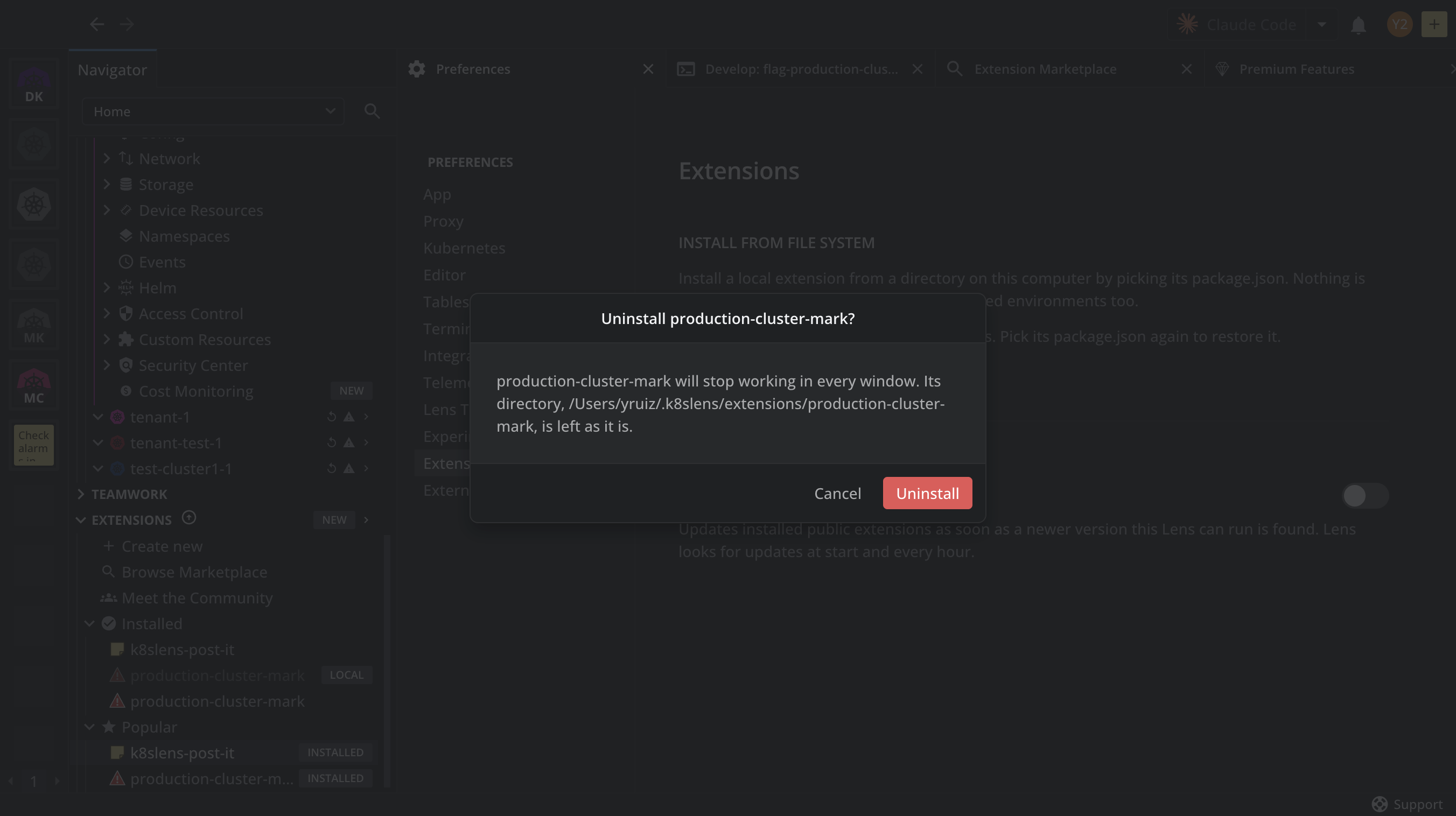
A local extension's directory is left as it is. The confirmation dialog names the directory that stays.
Note
Uninstalling also removes the extension's enabled/disabled state. If the extension keeps its own settings outside Lens, check its documentation for whether those survive.
Disable instead of removing#
To turn an extension off without losing it, select Disable in the same menu, or turn off the Enabled switch on its card. A disabled extension stops in every window but stays installed, and the state persists across restarts. Select Enable to load it again.
Restore an uninstalled local extension#
An uninstalled local extension keeps its files. To restore it, install it from the filesystem and select the package.json in its directory under ~/.k8slens/extensions/.
A marketplace extension leaves no files behind. To restore one, install it again from the marketplace.
Recover with safe mode#
When a broken extension stops Lens from working, start Lens in safe mode, a run that loads only what Lens ships with. When an extension crashes a view, the error page offers Restart in Safe Mode. Disable or uninstall the extension there, then click Leave Safe Mode in the top bar. For the steps, including the command-line flag for macOS, Windows, and Linux, see Start Lens in safe mode.