See and drive Lens with Ask AI#
Lens premium subscription feature. See details on Lens Pricing.
The AI tool in an Ask AI conversation can see what you see in Lens K8S IDE and use Lens for you. Turn on Allow AI to access UI and ask "Explain what I'm looking at right now." The tool takes a screenshot, reads the text on screen, and answers about your cluster, your view, and what you have selected.
Ask it to take you somewhere or to walk you through something, and it drives Lens while you watch: it clicks, types, and presses keys in any window of Lens.
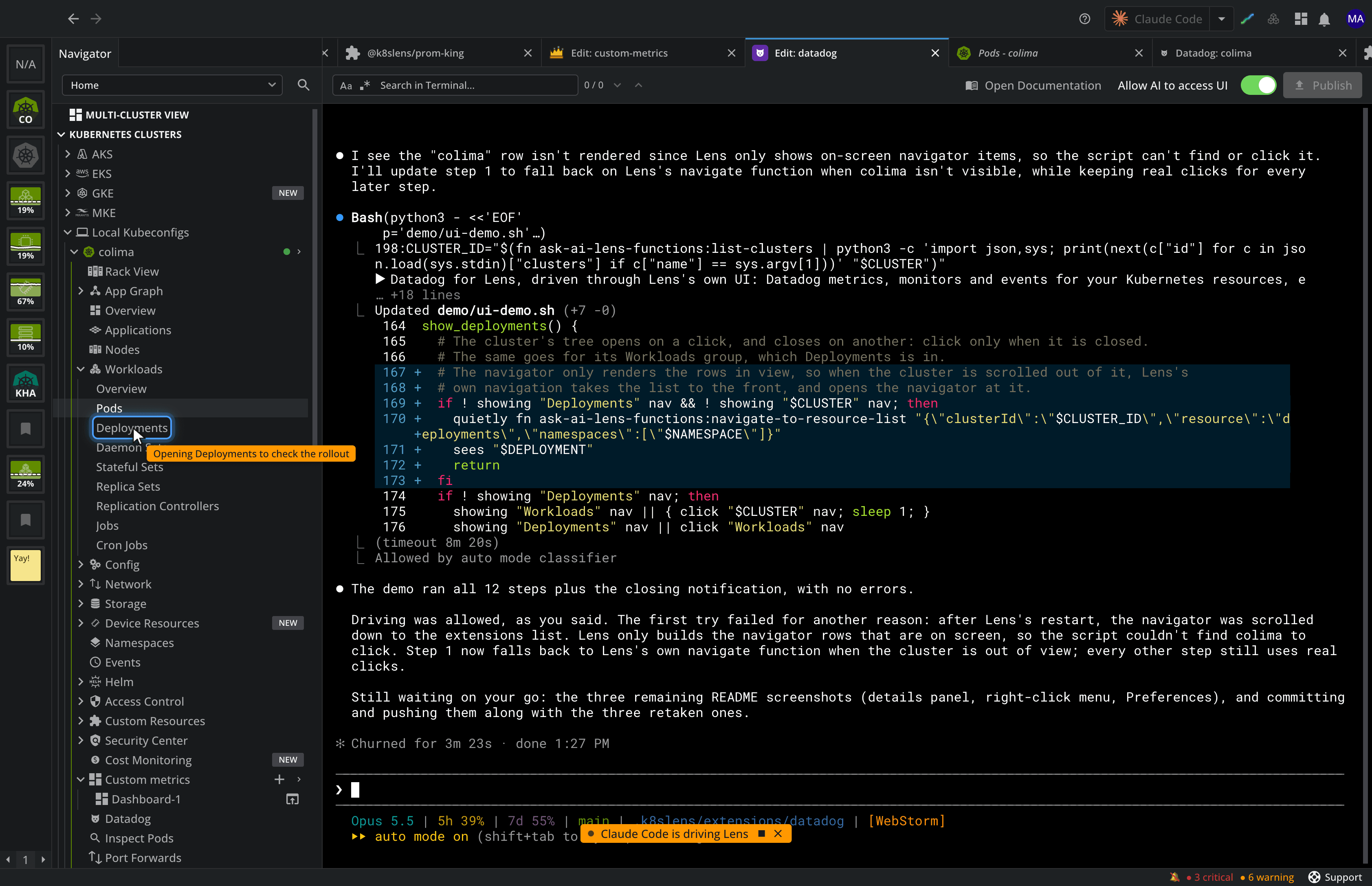
Turn on screen access for a conversation#
- Open an Ask AI conversation. See Using Ask AI.
- Turn on Allow AI to access UI on the toolbar of the conversation's terminal.
- The first time, Lens asks Let {tool} see and drive Lens?, with the name of your tool in place of {tool}. Select Allow.
Lens asks once. After you allow it, Lens does not ask again. If you close the dialog without allowing, Lens asks the next time.
The switch applies to that conversation only. A conversation follows the default in Preferences until you change its own switch, and a conversation reopened after a restart follows the default again. The switch also shows when an Ask AI conversation runs in a window of its own, and on the terminal an extension is developed in.
What the tool sees leaves your machine
Screenshots and the text on screen go to the AI tool and to the AI provider behind it, with whatever Lens shows: names, logs, configuration, and any secrets open on screen, from every connected cluster. The tool acts with your access, inside Lens only.
Set the default for every conversation#
- Open Preferences > External Tools.
- Under AI Tools, turn on Let AI tools see and drive Lens. It is off by default.
- Turn Show guides while an AI tool drives on or off. It is on by default. With guides off, the tool drives without pausing for you to follow.
The setup wizard asks the same question on its AI tool access step.
Follow the tool while it drives#
While the tool drives, Lens shows where it is going:
- A pointer moves to what the tool is about to click, a ring marks the target, and a ripple shows the click.
- A few words next to the pointer say why, for example Finding the crashing pod.
- A pill at the bottom of the window reads {tool} is driving Lens. When other conversations wait to drive, it shows how many are waiting. One conversation drives at a time.
Set the pace on the pill: 0.5x, 1x, 1.5x, 2x, or 5x. The default is 1x, and Lens remembers your choice. Hover over the pill to see a copy of the conversation's terminal, and click it to stop driving and go to the terminal.
When the tool finishes, the pill shows Driving concluded and a one-sentence summary of what the tool did.
Take control back#
- Click anywhere in Lens to stop the tool. The pill shows Driving stopped. The tool cannot drive again until you type to it in its terminal.
- Click the return button on the pill to go back to the view and window you were in before the tool started. Back still works from there.
- Turn off Allow AI to access UI to stop the tool and keep it out of Lens.
What the tool can do in Lens#
With or without screen access, your AI tool can act in Lens, not only in your cluster:
- Take you to any resource or list, and open the details of a resource.
- Open pod logs, a pod shell, or a local shell for the cluster in a dock tab. It types a command in the terminal without running it, so you read it and press Enter yourself.
- Query Prometheus and read the metrics of a resource or a cluster.
- Read what a cluster costs, when you have Cost Monitoring.
- Summarize vulnerabilities, when you have Security Center.
- List, start, stop, and open port forwards in the browser.
- Pin clusters to the hotbar, run Lens commands, and open the Command Palette or Preferences.
- Find, open, and install extensions. Lens asks you to confirm an install.
- Open a resource list beside the current tab or in a window of its own. See Lens Studio.
For changes that are yours to make, the tool opens the editor or dialog in Lens for you to review:
| Change | What the tool opens |
|---|---|
| Edit a resource | The editor. Nothing is applied until you save. |
| Create a resource | The create editor. Nothing is created until you select Create. |
| Install, upgrade, or roll back a Helm release | The Helm install, upgrade, or rollback dialog |
| Forward a port | The port forward dialog |
| Add a cluster to a space | The dialog, for you to complete |
Availability#
Screen access comes with a Lens Cloud license that includes it. When your license does not include it, or your organization turns it off in Lens Cloud, the switch, the preference, and the setup wizard step do not show.